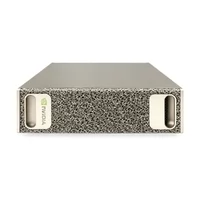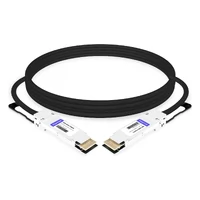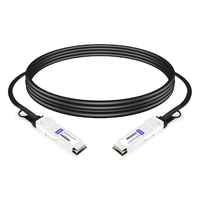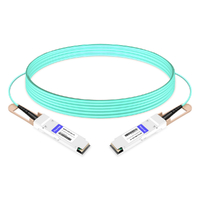

Building a 4-node NVIDIA DGX Spark cluster involves more than simply connecting four powerful AI systems. The real challenges often lie in the details: a machine without native USB-A ports, a switch port that refuses to establish a link, or a firmware update that fails unexpectedly and requires system recovery.
This guide provides a complete runbook based on our four-unit build, covering the hardware bill of materials (BOM), rear-panel connections, DGX OS first-boot setup, hostname configuration, point-to-point 200G QSFP link testing, and the switch configuration changes that resolved a 200G ConnectX-7 link issue on a MikroTik CRS812 400G port.
If you are building a compact Arm-based AI cluster for distributed inference, model fine-tuning, or AI research, this guide walks through the setup process in a practical sequence, from initial hardware preparation to network verification.
Why Build a DGX Spark Cluster Instead of Buying Bigger?
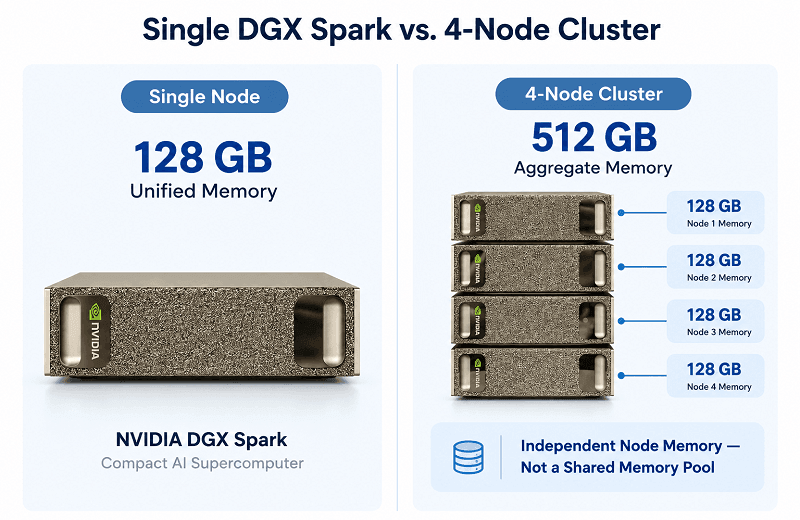
A single DGX Spark provides 128 GB of unified LPDDR5X memory shared by its CPU and GPU. This is sufficient for many AI development and inference workloads, but larger models or more demanding applications may exceed the memory capacity or compute resources of a single node.
Four nodes change the capacity equation. A 4-node cluster provides 512 GB of aggregate unified memory, high-speed inter-node connectivity of up to 200 Gb/s per connected QSFP port, and a horizontal scaling path that allows additional computing resources to be deployed incrementally rather than requiring an immediate investment in a large rack-scale system.
Importantly, the 512 GB figure represents the combined physical memory capacity of four separate systems. It is not a single, transparently shared 512 GB memory pool. Distributed applications must explicitly coordinate data, model partitions, or workloads across nodes.
For laboratories, research groups, and teams prototyping AI inference infrastructure, this incremental approach offers greater deployment flexibility and potentially lower upfront costs.
The trade-off is that you now need to manage a small high-speed network. Inter-node throughput, latency, communication reliability, and distributed workload performance depend not only on computing resources but also on properly configured QSFP links, network interfaces, and communication protocols.
| Metric | Single Node | 4-Node Cluster |
| Unified memory | 128 GB | 512 GB aggregate across four nodes |
| Interconnect | 10 GbE RJ-45 and 2× QSFP ports supporting up to 200 Gb/s each | Up to 200 Gb/s per connected node in the single-link switch topology described here |
| Best fit | Prototyping, single-model inference | Distributed inference, fine-tuning, multi-agent workloads |
| Failure domain | 1 system | 4 systems — plan for node and network failures |
NVIDIA DGX Spark Specifications at a Glance
Before purchasing cables or selecting a switch, it is essential to understand the hardware and networking capabilities of the DGX Spark.
The following specifications are particularly relevant when planning a multi-node cluster.
Hardware Components
| Component | Specification |
| GPU | NVIDIA Blackwell architecture, 5th-generation Tensor Cores, 4th-generation RT Cores |
| CPU | 20-core Arm processor (10× Cortex-X925 + 10× Cortex-A725) |
| Memory | 128 GB LPDDR5X unified system memory, 256-bit interface, 4266 MHz clock, 273 GB/s bandwidth |
| Storage | 1 TB or 4 TB self-encrypting NVMe M.2 SSD, depending on configuration; 4 TB in our build |
| Network | 1× RJ-45 (10 GbE), ConnectX-7 SmartNIC with 2× QSFP ports supporting up to 200 Gb/s each, Wi-Fi 7, Bluetooth 5.4 |
| Peripheral I/O | 4× USB Type-C (including one dedicated power input), 1× HDMI 2.1a, HDMI multichannel audio |
| Video | 1× NVENC encoder, 1× NVDEC decoder |
AI Compute Performance
| Metric | Specification |
| AI performance | Up to 1,000 TOPS inference; up to 1 PFLOP FP4 with sparsity |
| CUDA cores | 6,144 |
| Copy engines | 2 (supporting concurrent data transfers) |
| Memory bandwidth | 273 GB/s |
| Memory channels | 16-channel, 256-bit LPDDR5X-8533 |
The performance figure worth highlighting is 273 GB/s of local unified-memory bandwidth. This allows the integrated CPU and GPU to access a shared memory architecture without requiring separate physical CPU and GPU memory pools.
However, local memory bandwidth and inter-node network bandwidth must not be confused.
A 200 Gb/s Ethernet link has a theoretical raw data rate of 25 GB/s before accounting for Ethernet and higher-layer protocol overhead. This is substantially lower than the system’s 273 GB/s local memory bandwidth.
The value of the 200G interconnect is therefore not that it exceeds local memory performance, but that it provides high-bandwidth communication between separate DGX Spark systems.
This is particularly important for distributed inference, model partitioning, and workloads that exchange data across multiple nodes. Actual application performance depends on communication patterns, software optimization, latency, and the achievable network throughput.
Complete Hardware BOM for a 4-Node Cluster
| # | Item | Notes |
| 1 | 4× NVIDIA DGX Spark | One system per node |
| 2 | QSFP switch — MikroTik CRS812 | 2× 400G QSFP56-DD + 2× 200G QSFP56 + 8× 50G SFP56 ports |
| 3 | 4× 200G-capable QSFP cable assemblies | Node-to-switch interconnect; connector type, cable coding, and compatibility must be verified |
| 4 | Monitor, mouse, keyboard, HDMI cable | Required for the local first-boot method; network-based setup is also supported |
| 5 | USB-C to USB-A adapter | Required when using USB-A peripherals; DGX Spark has no native USB-A port |
| 6 | USB hub | Optional; allows multiple USB-A peripherals to share one USB-C connection |
| 7 | Cat6/Cat6a RJ-45 patch cables | Wired management and internet connectivity strongly recommended for initial setup and updates |
Choosing 200G QSFP56 Cables and 400G Breakout Options
Two cabling decisions can determine whether the cluster works on the first attempt.
First, the 200G QSFP connection.
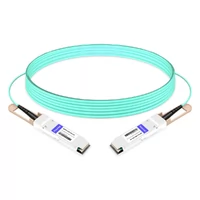
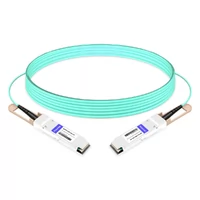
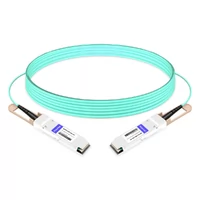
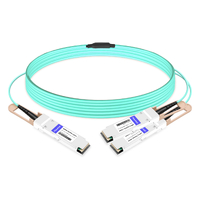
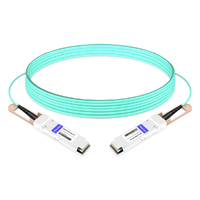
For a four-node cluster using the MikroTik CRS812, four compatible QSFP DAC or AOC cable assemblies provide a straightforward switch-based topology, with one cable connecting each DGX Spark to the switch.
Before ordering, confirm three things:
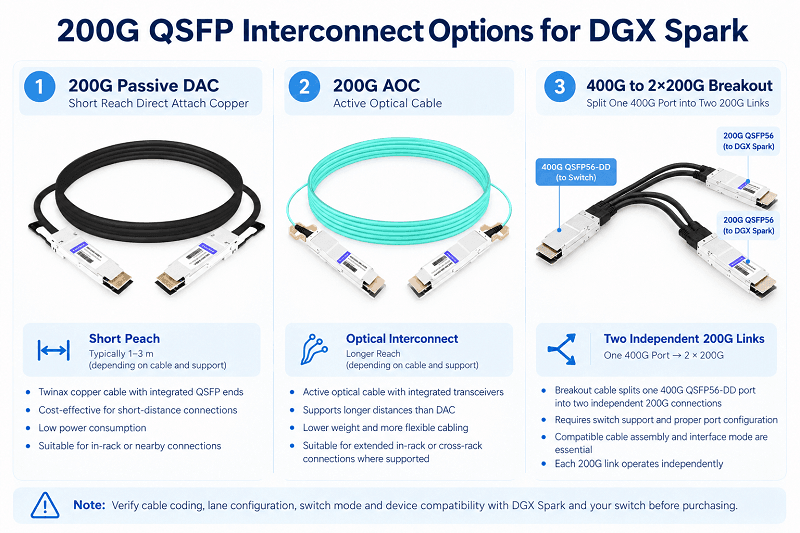
- Cable length and transmission medium: Select a cable rated for the required distance. Passive DAC cables are typically suitable for short connections, often around 1–3 m depending on cable gauge and device support. For longer distances, use validated active copper, AOC, or optical transceiver solutions where supported.
- Connector and electrical compatibility: Do not select a cable solely because it has a QSFP-style connector or is marketed as a 200G QSFP56 cable. The connector type, lane configuration, supported link rate, and cable coding must be compatible with both endpoints.
- Device validation: Confirm compatibility with the DGX Spark ConnectX-7 interface and the corresponding switch port, rather than relying only on generic 200G Ethernet compatibility claims.
NVIDIA’s DGX Spark documentation identifies specific approved cable assemblies, including Amphenol QSFP-to-QSFP112 and Luxshare QSFP112 DAC options. These examples demonstrate why compatibility must be verified at the complete assembly level rather than by connector-generation names alone.
The DGX Spark QSFP ports support Ethernet operation, including RoCE-based communication. They should not be assumed to provide native InfiniBand link operation.
Second, the 400G port configuration.
If your switch has only 400G ports available, those ports may still be usable for 200G connectivity, provided the switch supports the required operating mode and cable configuration.
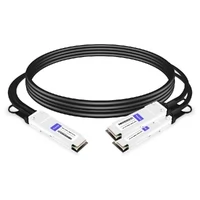
A supported 400G-to-2×200G breakout cable can divide one 400G port into two independent 200 Gb/s connections, allowing a single switch port to serve two DGX Spark nodes.
This is an efficient option for a four-node deployment when native 200G switch ports are limited.
However, breakout operation is not automatic. It requires the appropriate 400G QSFP56-DD switch port, compatible breakout cable assembly, supported RouterOS interface configuration, and correctly configured 200G breakout interfaces.
A 400G-to-2×200G breakout cable provides two independent 200 Gb/s links, not two individual 200G electrical lanes.
The correct configuration depends on whether the connection uses DAC, AOC, or another supported optical solution.
Before ordering, verify the specific switch model, port mode, RouterOS version, cable assembly, and device compatibility.
Three Parts People Forget
- The USB-C to USB-A adapter. DGX Spark has no native USB-A port. If your keyboard or mouse uses USB-A, you will need an adapter or a compatible USB-C hub. Native USB-C peripherals can connect directly to the available data ports.
- A USB hub. A single USB-C to USB-A adapter typically provides only one USB-A connection. A hub allows a USB-A keyboard and mouse to be connected simultaneously. If you are configuring the four nodes sequentially, the same adapter and hub can be reused.
- A wired network connection. Wi-Fi is supported, but a stable wired Ethernet connection is preferable during initial setup and software updates. An unstable network connection may interrupt downloads or installation procedures, potentially requiring troubleshooting or recovery.
DGX Spark Rear Panel, Port by Port
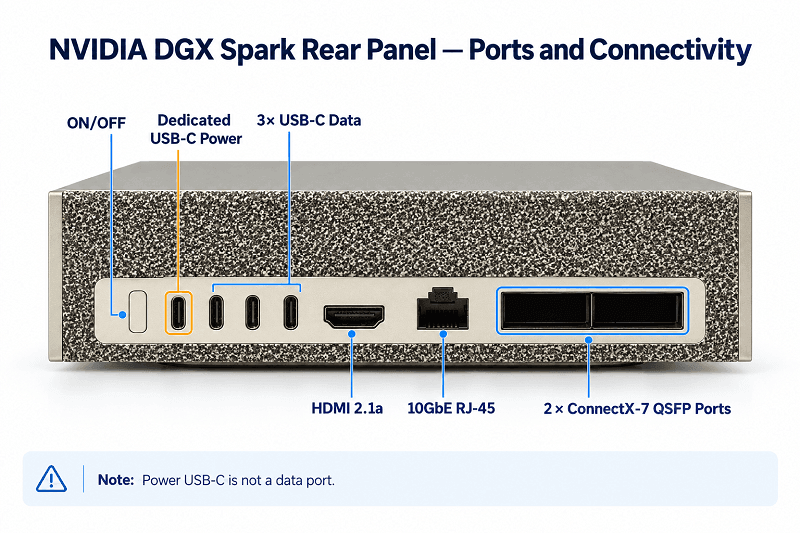
| Port | Function |
| ON/OFF | Power button |
| Power Type-C | Dedicated power input — not a data port |
| USB-C ×3 | General-purpose USB Type-C ports for data and peripherals |
| HDMI | HDMI 2.1a video output |
| Ethernet | 10 GbE RJ-45 |
| QSFP ×2 | Two ConnectX-7 high-speed Ethernet ports, supporting up to 200 Gb/s each |
The critical distinction is between the power USB-C port and the three USB-C data ports.
The dedicated power port is intended for the supplied power adapter and should not be used for ordinary USB peripherals. Always identify the labeled power connector before connecting devices.
The two QSFP network ports are positioned next to each other on the rear panel.
For the single-link topology described in this guide, we standardized on the QSFP port farther from the Ethernet jack across all four nodes. When viewing the system from the rear, this is the right-hand QSFP port.
Although the physical ports are interchangeable for many connection scenarios, their corresponding Linux interface names differ. Consistent port selection makes cabling, interface identification, and troubleshooting easier.
Wiring Order: Cable Everything Before You Apply Power
Connect the required peripherals and network cables before applying power.
NVIDIA recommends completing the physical connections before the first startup because DGX Spark normally begins booting automatically when power is connected.
The following sequence was used for our local setup:
- Plug the USB-C end of the USB-C to USB-A adapter into one of the three non-power USB-C ports.
- Connect the USB hub to the adapter’s USB-A output, if required.
- Connect the keyboard and mouse to the hub.
- Connect the HDMI cable between the DGX Spark and the monitor, then power on the monitor.
- Insert the RJ-45 Ethernet cable for management connectivity and software updates.
- If the high-speed network topology is already prepared, connect the appropriate QSFP cable to the selected ConnectX-7 port. Otherwise, the QSFP connection can be tested after the initial OS setup.
- Last: Connect the supplied power adapter to the dedicated USB-C power port, connect the adapter to the mains supply, and switch on the outlet.
The unit normally powers on automatically once power is applied.
After startup, check the following:
- The keyboard responds to input.
- The monitor receives a video signal.
- The system begins the expected boot or setup sequence.
- No unexpected hardware fault indicators are present.
If the system does not start automatically, check the power connections and press the rear-panel ON/OFF button to initiate startup.
A failure to start immediately does not necessarily indicate a hardware fault. Confirm the external power supply and system state before proceeding with further troubleshooting.
First Boot: DGX OS Initial Setup Walkthrough
Each DGX Spark provides a first-boot setup process for initial system configuration.
For this build, we used a monitor with a keyboard and mouse connected locally. DGX Spark also supports network-based initial setup using another computer on the same network, without requiring a dedicated display or keyboard.
If using local setup, follow the on-screen instructions and pay particular attention to the Bluetooth pairing behavior described below.
Bluetooth Warning
If the system does not detect a USB keyboard or mouse, the setup interface may offer Bluetooth pairing.
Bluetooth devices should be paired while the initial Get Started screen is displayed. Once you click Get Started, the Bluetooth pairing process for that stage ends.
If pairing was not completed, restarting the setup process may be necessary.
Bluetooth keyboards that require entering a pairing code may not work during this initial pairing stage.
Compatible USB keyboards and mice, by contrast, can generally be connected during setup and detected automatically.
For a predictable setup experience, a wired USB keyboard and mouse remain the simplest choice.
Settings That Matter:
- Language and time zone — Select the appropriate language, region, and time zone for your environment.
- Keyboard layout — The default US layout is suitable for US keyboards. Select another layout if required.
- License agreement — Review the license agreement and follow the on-screen instructions to accept the terms. Depending on the interface version, you may need to scroll through the agreement before continuing.
- User account — Create a consistent administrative username across all four nodes to simplify cluster management. Use strong authentication credentials and follow your organization’s password policy. For secure multi-node access, SSH keys are preferable to repeatedly entering shared passwords.
- Telemetry — Configure analytics and crash reporting according to your organization’s privacy and security policies. This is a policy decision rather than a cluster networking requirement.
If the RJ-45 Ethernet connection provides working internet access, the setup process may skip Wi-Fi selection.
Otherwise, you may be prompted to choose a wireless network and enter its password.
The 20-Minute Initial Software Download
Once internet connectivity is established, DGX Spark downloads and installs the software required to complete the initial setup.
In our build, this process took approximately 20 minutes per node. The actual duration depends on the software version, network speed, and update requirements.
The installation may include automatic reboots, and progress indicators may appear inactive for extended periods.
Do not power off the system or interrupt the installation.
NVIDIA warns that interrupting the initial installation can cause system damage and may require software recovery.
When installation finishes, log in with the account created during setup.
Confirm that the reported storage and memory match the configuration you purchased.
For our 4 TB configuration, the expected hardware included:
- 4 TB NVMe storage
- 128 GB unified system memory
Some DGX Spark configurations are available with 1 TB storage, so verify the purchased SKU rather than assuming every unit includes a 4 TB SSD.
Confirming the hardware configuration early helps prevent unnecessary troubleshooting later.
Updating DGX OS and Firmware
A new DGX Spark may arrive with an older software image or pending component updates.
Before installing additional AI frameworks or deploying distributed workloads, check for available DGX OS, driver, and firmware updates.
NVIDIA recommends the DGX Dashboard as the primary update method for DGX Spark Founders Edition systems.
For systems manufactured by NVIDIA partners, verify the manufacturer’s update instructions because firmware delivery and supported update procedures may differ.
Method 1: DGX Dashboard
- Open the application launcher on the desktop.
- Select DGX Dashboard.
- Authenticate with your node credentials if prompted.
- Open the system update section and review any available operating system, driver, or firmware updates.
- Click Update or follow the corresponding on-screen instructions to install the available updates.
- Allow the update process to finish and the system to reboot if required.
In our build, the update process took approximately 20 minutes per node, although the duration may vary depending on the number and size of updates.
Maintain stable power and network connectivity throughout the process.
Interrupting a firmware update may require additional recovery procedures and should be avoided.
Method 2: Manual Update When OTA Fails
Occasionally, an update through the dashboard may report an error or fail to complete.
For advanced users, or when the DGX Dashboard is unavailable, NVIDIA documents a manual update method using standard Ubuntu package management and fwupd.
Open a terminal and run:
sudo apt update
sudo apt dist-upgrade
sudo fwupdmgr refresh
sudo fwupdmgr upgrade
sudo reboot
What these commands do:
- apt update and apt dist-upgrade — Refresh package lists and upgrade installed software packages, including applicable OS components and drivers.
- fwupdmgr refresh and fwupdmgr upgrade — Refresh firmware metadata and install supported firmware updates that are available through fwupd.
- reboot — Restart the system to complete updates that require a reboot.
These commands are consistent with NVIDIA’s documented manual update procedure for DGX Spark Founders Edition systems. However, the dashboard remains the preferred update method because it provides a tested update path for NVIDIA-optimized components.
Before performing any operating system or firmware update, confirm that power is stable, save all active work, back up important data, and ensure that a supported recovery procedure is available.
For production or demonstration environments, schedule updates during a maintenance window.
Verify the Installed Build
After the update, verify the installed software version.
Run:
cat /etc/dgx-release
An example of the output from our earlier build is shown below:
DGX_NAME=”DGX Spark”
DGX_PRETTY_NAME=”NVIDIA DGX Spark”
DGX_SWBUILD_DATE=”2025-09-10-13-50-03″
DGX_SWBUILD_VERSION=”7.2.3″
DGX_COMMIT_ID=”833b4a7″
DGX_PLATFORM=”DGX Server for KVM”
DGX_SERIAL_NUMBER=”[REDACTED]”
DGX_OTA_VERSION=”7.5.0″
DGX_OTA_DATE=”Thu Aug 27 11:23:55 CST 2026″
This is historical example output, not a statement of the latest available DGX OS release. The reported fields and versions may differ across software builds and hardware configurations.
Record the DGX_SERIAL_NUMBER of each node alongside its assigned hostname.
This information is useful for asset tracking, troubleshooting, warranty support, and hardware replacement.
Keeping a clear mapping between serial numbers, hostnames, and physical node locations can save considerable time during future maintenance.
Setting Hostnames for Multi-Node Management
Managing four physically similar systems becomes difficult if they use inconsistent or duplicate hostnames.
Assign clear, unique hostnames immediately after the initial setup and updates.
For the first node, run:
sudo tee /etc/hostname > /dev/null << EOF
spark-node1
EOF
Repeat the process on the remaining nodes using:
- spark-node2
- spark-node3
- spark-node4
Next, configure the corresponding entries in /etc/hosts on each node.
The hostnames should resolve to the IP addresses used for the intended cluster communication network.
However, editing /etc/hosts only establishes local hostname-to-IP mappings. It does not assign IP addresses to the ConnectX-7 network interfaces.
Before relying on these mappings, configure the appropriate fabric IP addresses and network settings using NVIDIA Sync Cluster Assistant or a supported manual networking procedure.
For a four-node switch-based topology, the NVIDIA Sync Cluster Assistant provides a guided way to discover nodes, configure ConnectX-7 networking, and validate inter-node connectivity.
If configuring the network manually, ensure that each node has the appropriate IP configuration, interface settings, and routes.
After completing the hostname configuration, reboot the systems or apply the hostname changes through the appropriate system management tools.
Consistent naming across /etc/hostname, /etc/hosts, and your cluster configuration reduces the risk of running commands on the wrong node and simplifies distributed workload management.
Testing 200G QSFP Links: Point-to-Point First
Before introducing the switch, test the QSFP cable assemblies individually.
Point-to-point testing helps isolate basic cabling and link-establishment problems from switch configuration issues.
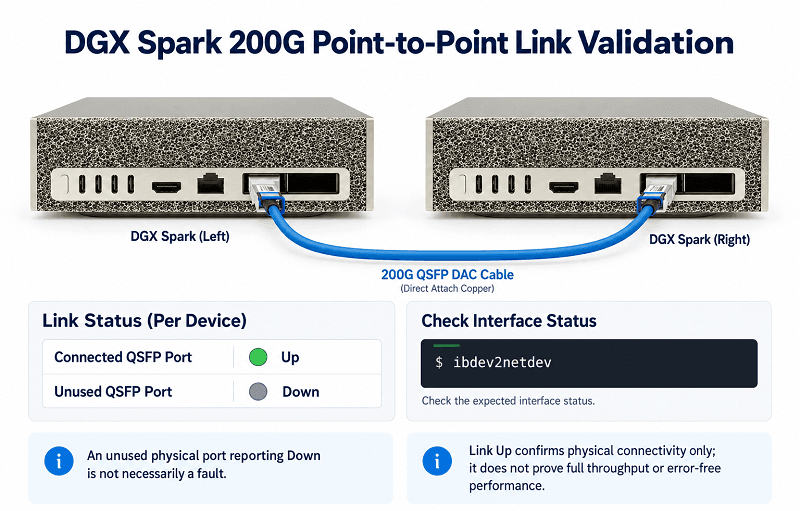
Take one compatible 200G-capable QSFP cable assembly and connect the ConnectX-7 ports of two DGX Spark systems.
For consistency, use the QSFP port farther from the Ethernet jack, as described earlier.
Then run:
ibdev2netdev
A representative result using the right-hand QSFP port is:
rocep1s0f0 port 1 ==> enp1s0f0np0 (Down)
rocep1s0f1 port 1 ==> enp1s0f1np1 (Up)
roceP2p1s0f0 port 1 ==> enP2p1s0f0np0 (Down)
roceP2p1s0f1 port 1 ==> enP2p1s0f1np1 (Up)
Reading ibdev2netdev Output
- Up — The corresponding network interface reports an active link. This is a useful indication that the physical connection has been established, but it does not by itself verify error-free operation or achievable throughput.
- Down — The corresponding interface does not report an active link. Check whether the interface belongs to the connected physical port before treating this as a fault. If the expected interface remains down, investigate the cable, connector seating, port configuration, or compatibility.
One important detail is that the DGX Spark ConnectX-7 implementation exposes multiple Linux Ethernet interfaces associated with its physical QSFP ports.
Consequently, the example above shows two interfaces reporting Up and two reporting Down when only the right-hand QSFP port is connected.
This is not necessarily an error.
The two interfaces associated with the unused left-hand port may remain down while those associated with the connected right-hand port report an active link.
Test all four cable assemblies using this method.
A cable that fails to establish a direct link should be investigated before it is introduced into the switch-based topology.
However, a successful point-to-point link does not guarantee switch compatibility or full operational performance.
The switch port mode, interface settings, FEC configuration, and end-to-end network communication must still be verified.
Connecting Through a 400G Switch (and the Auto-Negotiation Trap)
After checking the cable assemblies individually, connect the four DGX Spark nodes to the MikroTik CRS812 switch.
In our setup, each node used one ConnectX-7 QSFP connection to the switch.
The CRS812 provides:
- 2× 200G QSFP56 ports
- 2× 400G QSFP56-DD ports
- 8× 50G SFP56 ports
The two native 200G ports provide a straightforward connection option for compatible DGX Spark links.
The 400G ports can also support lower-rate operating modes, including supported 200G configurations, but they must be configured correctly for the intended connection.
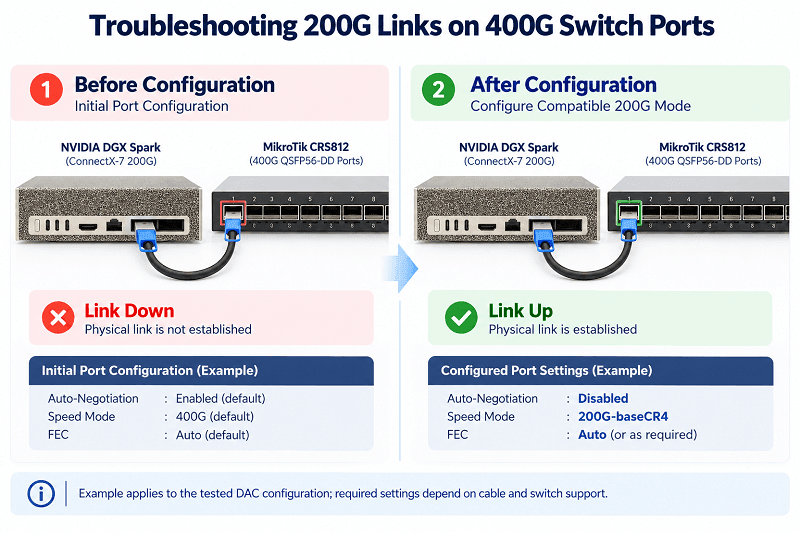
The Symptom: Port Down, No Link Light
During our build, two DGX Spark nodes connected to the CRS812’s native 200G ports established links successfully.
However, the two nodes connected to the switch’s 400G QSFP56-DD ports did not establish a link under the initial port configuration.
The switch showed no active link indication, and ibdev2netdev continued to report the corresponding connected interfaces as Down.
The same cable assemblies had previously established links during point-to-point testing.
This suggested that the issue was related to the switch-side link configuration rather than simply a disconnected cable.
The DGX Spark ConnectX-7 interface supports up to 200 Gb/s per QSFP port, while the corresponding CRS812 switch ports are capable of 400 Gb/s operation.
A 400G-capable switch port does not necessarily select a compatible 200G operating mode automatically.
Whether it can establish a lower-speed link depends on the switch hardware, port mode, cable assembly, supported link speeds, auto-negotiation behavior, and FEC settings.
In our tested configuration, explicitly selecting a compatible 200G mode resolved the link-establishment issue.
The Fix: Configure the Appropriate 200G Link Mode
For the tested DAC connection, the required switch-side configuration involved disabling auto-negotiation and selecting the appropriate 200G copper link mode.
On MikroTik RouterOS, this mode is identified as:
200G-baseCR4
This mode is intended for compatible four-lane 200G direct-attach copper connections.
It must not be treated as a universal setting for every optical or active cable assembly.
For supported optical connections, the corresponding mode may be:
200G-baseSR4-LR4
The selected operating mode must match the actual interface configuration and physical connection.
To update the configuration using WinBox:
- Download and install WinBox, the MikroTik management utility.
- Connect your laptop to an appropriate Ethernet management port on the CRS812 using an RJ-45 cable.
- Open WinBox and locate the switch using its IP address or the Neighbors discovery feature.
- If managing the switch through its default IP configuration, assign your laptop a suitable address, such as 192.168.88.2/24, and connect to 192.168.88.1. Alternatively, use WinBox MAC-based access when available.
- Log in using the configured administrator credentials. For a factory-default device, follow the authentication information supplied with the hardware, and set a secure administrator password.
- Open the Ethernet interface configuration section and identify the relevant QSFP56-DD port or breakout interface.
- Disable Auto Negotiation where required by the selected operating mode.
- For the tested compatible DAC connection, select 200G-baseCR4 on the appropriate 200G interface.
- Click Apply → OK to save the changes.
- Confirm that the expected link becomes active.
For a 400G-to-2×200G breakout configuration, ensure that both 200G breakout interfaces are configured correctly.
The correct interface names and supported operating modes depend on the CRS812 interface mapping and RouterOS configuration.
For 200G Ethernet links based on 50 Gb/s electrical lanes, RS-FEC is typically required. Verify that the switch and NIC use compatible FEC settings if the link does not establish successfully.
After applying the compatible 200G configuration in our test environment, the affected links came up successfully.
This result reflects the specific switch, cable, and port configuration tested. It should not be interpreted as evidence that every 400G switch requires auto-negotiation to be disabled when connecting to a 200G NIC.
Verify the Negotiated Speed
After the links become active, verify the reported link speeds on the DGX Spark nodes.
For example:
sudo ethtool enP2p1s0f1np1 | grep Speed
Expected output for an established 200 Gb/s link:
Speed: 200000Mb/s
You can also run:
ibdev2netdev
For the right-hand QSFP port, a representative output is:
rocep1s0f0 port 1 ==> enp1s0f0np0 (Down)
rocep1s0f1 port 1 ==> enp1s0f1np1 (Up)
roceP2p1s0f0 port 1 ==> enP2p1s0f0np0 (Down)
roceP2p1s0f1 port 1 ==> enP2p1s0f1np1 (Up)
A reported speed of 200000Mb/s confirms that the corresponding Ethernet interface is operating at a nominal link rate of 200 Gb/s.
However, the reported link speed does not prove that the cluster can sustain 200 Gb/s of application throughput.
Before running distributed inference or model fine-tuning workloads, complete the remaining network configuration and validation steps:
- Identify the correct ConnectX-7 network interfaces on each node.
- Configure the required fabric IP addresses and network settings.
- Verify IP connectivity between nodes using appropriate network diagnostic tools.
- Confirm that the intended communication interfaces are selected by the distributed application.
- Where applicable, validate network throughput and RDMA performance using suitable benchmarking tools.
- Check for link errors, packet loss, and unexpected performance limitations.
The NVIDIA Sync Cluster Assistant can simplify several of these tasks for supported DGX Spark cluster configurations.
Once the high-speed links, IP networking, and inter-node communication have been verified, the cluster is ready for the next stage of distributed inference, model fine-tuning, and multi-node benchmarking.
Lessons Learned: The Two Pitfalls That Cost the Most Time
1. No native USB-A ports
DGX Spark provides USB-C ports but no native USB-A connections.
If you intend to use existing USB-A keyboards, mice, or other peripherals, prepare a compatible USB-C to USB-A adapter or USB hub before beginning the local setup process.
This is a relatively inexpensive accessory, but overlooking it can delay deployment unnecessarily.
Using native USB-C peripherals or the supported network-based setup method can eliminate the need for an adapter.
2. Do not assume that 400G ports will automatically establish 200G links
A 400G-capable switch port does not always establish a compatible 200G connection using its default settings.
In our CRS812 deployment, the relevant 400G QSFP56-DD interfaces required explicit 200G configuration for the tested DAC links.
Disabling auto-negotiation and selecting 200G-baseCR4 on the appropriate interfaces resolved the issue in this specific environment.
For other cable types or switch models, the required settings may differ.
Always verify the supported link modes, physical media, FEC settings, and interface configuration before applying the same solution.
These two issues accounted for much of the troubleshooting time in our build.
Everything else — cabling order, software updates, hostname configuration, and network validation — benefits from following a clear and repeatable procedure.
A systematic setup sequence makes it easier to isolate faults and reduces the likelihood of confusing physical connectivity problems with software or network configuration errors.
FAQ
Does DGX Spark have USB-A ports?
No. DGX Spark provides four USB Type-C ports, including one dedicated power input, and has no native USB-A ports.
If you want to use a USB-A keyboard or mouse during local setup, you will need a USB-C to USB-A adapter or compatible hub.
Native USB-C peripherals can connect directly to the data ports. Network-based initial setup is also supported.
Why Won’t My 400G Switch Port Link Up at 200G?
A 400G switch port may require an explicitly configured 200G operating mode, depending on the switch hardware, cable type, and port configuration.
In our MikroTik CRS812 setup, disabling auto-negotiation and selecting 200G-baseCR4 for the tested DAC connection resolved the issue.
For optical links or other switches, verify the supported link mode and FEC settings before making changes.
How Long Does the DGX Spark First-Boot Update Take?
In our build, the initial software download and installation took approximately 20 minutes per node, followed by another update through DGX Dashboard that took approximately 20 minutes.
Actual times vary with network speed, software version, and update size.
Do not interrupt the installation or firmware update process, as doing so may cause system damage or require recovery.
Can I Connect Two DGX Sparks Directly Without a Switch?
Yes. Two DGX Spark systems can be connected directly using a compatible QSFP cable assembly that supports the required link speed.
Use ibdev2netdev or other network tools to check link status.
A working physical link is only the first step. You must also configure the appropriate network interfaces and IP addresses to enable communication between the two systems.
For four-node clusters, a switch-based topology is supported by NVIDIA Sync Cluster Assistant.
What Cable Do I Need Between Two DGX Spark Nodes?
Use a compatible QSFP cable assembly capable of supporting at least a 200 Gb/s Ethernet link on the DGX Spark ConnectX-7 interfaces.
Passive DAC is a practical option for short connections, while longer distances may require validated active or optical solutions.
The correct cable choice depends on the device interfaces, supported electrical signaling, physical connector types, cable coding, and transmission distance.
Do not assume that every QSFP56 or QSFP112 cable will work simply because it is rated for 200G or 400G.
For switch deployments with suitable 400G QSFP56-DD ports, a supported 400G-to-2×200G breakout assembly may provide two independent 200 Gb/s connections.
What Comes Next
With the hardware installed, DGX OS configured, and 200G interconnects verified, the four-node DGX Spark cluster becomes a practical platform for exploring distributed AI workloads.
The next step is to deploy a model across all four nodes and measure how the high-speed network performs under real application traffic.
Next in this series: deploying DeepSeek-V4-Flash-0731 across the four-node cluster and benchmarking the performance of a 200G Ethernet fabric during distributed inference.
These tests will help demonstrate how network bandwidth, latency, model partitioning, and software configuration affect multi-node AI performance.
Building a DGX Spark or Similar Arm-Based AI Cluster?
High-speed interconnect compatibility is one of the most important considerations when designing a small AI cluster.
If you are specifying 200G QSFP DAC/AOC connections or 400G-to-2×200G breakout cables, verify cable length, connector type, electrical compatibility, transceiver or cable coding, switch port modes, and FEC requirements before deployment.
Selecting a validated interconnect solution can reduce troubleshooting time, simplify cluster setup, and help ensure reliable communication between AI compute nodes.
Related Products:
-
 NVIDIA DGX Spark (940-54242-0006-000): Personal AI Desktop Supercomputer - Built on NVIDIA GB10 Grace Blackwell Superchip
$7800.00
NVIDIA DGX Spark (940-54242-0006-000): Personal AI Desktop Supercomputer - Built on NVIDIA GB10 Grace Blackwell Superchip
$7800.00
-
QDD-200G-PC50CM 0.5m (1.6ft) 200G QSFP-DD to QSFP-DD Passive Direct Attach Copper Twinax Cable
$45.00
-
QSFP56-200G-PC50CM 0.5m (1.6ft) 200G QSFP56 to QSFP56 PAM4 Passive Direct Attach Copper Twinax Cable
$45.00
-
QSFP56-200G-AOC-1M 1m (3ft) 200G QSFP56 to QSFP56 Active Optical Cable
$330.00
-
QSFP56-200G-AOC-2M 2m (7ft) 200G QSFP56 to QSFP56 Active Optical Cable
$340.00
-
QSFP56-200G-AOC-3M 3m (10ft) 200G QSFP56 to QSFP56 Active Optical Cable
$350.00
-
QSFP56-200G-AOC-5M 5m (16ft) 200G QSFP56 to QSFP56 Active Optical Cable
$355.00
-
NVIDIA(Mellanox) MCP7H50-H001R30 Compatible 1m (3ft) Infiniband HDR 200G QSFP56 to 2x100G QSFP56 PAM4 Passive Breakout Direct Attach Copper Cable
$55.00
-
NVIDIA(Mellanox) MFS1S50-H003E Compatible 3m (10ft) 200G HDR QSFP56 to 2x100G QSFP56 PAM4 Breakout Active Optical Cable
$480.00
-
NVIDIA(Mellanox) MFS1S00-H003E Compatible 3m (10ft) 200G HDR QSFP56 to QSFP56 Active Optical Cable
$350.00