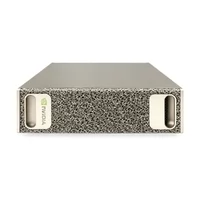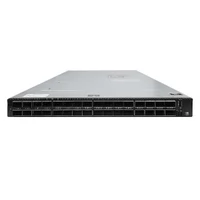

The NVIDIA DGX Spark is the smallest AI supercomputer NVIDIA has built. Powered by the GB10 Grace Blackwell Superchip, it puts up to 1 PFLOP of FP4 AI compute and 128 GB of unified memory on your desk, enough to run local inference on models up to 200 billion parameters and to fine-tune models up to 70 billion parameters. This quick start guide walks you through unboxing, first boot, system verification, SSH access, and Docker GPU configuration, then shows you how to run your first model so the system is actually working before you close the tab.
FiberMall sells the NVIDIA DGX Spark as a complete personal AI desktop system. If you are still choosing hardware, our guide to the NVIDIA GB200 superchip and liquid-cooled racks explains the rack-scale end of the same Blackwell generation.
DGX Spark Hardware Specifications
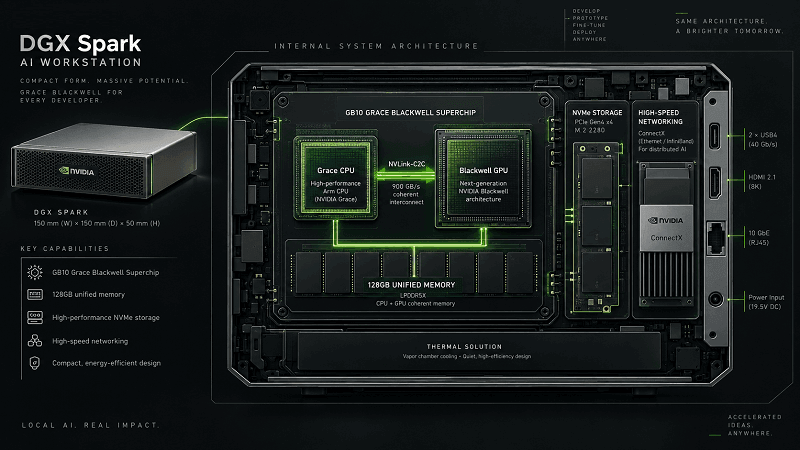
The DGX Spark delivers data-center-class AI performance in a compact desktop chassis (150 mm x 150 mm x 50.5 mm, about 1.2 kg). It suits AI developers, researchers, and engineers who prototype, fine-tune, or run large language models locally, and it is light enough to take to client sites for live demonstrations.
Key specifications:
- Superchip: NVIDIA GB10 Grace Blackwell Superchip
- CPU: 20-core Arm-based NVIDIA Grace CPU
- Memory: 128 GB unified system memory, coherent between CPU and GPU, which removes the need to copy data between host and device
- AI performance: up to 1 PFLOP FP4, with local inference up to 200B parameters on one unit
- Networking: NVIDIA ConnectX networking (two units can be interconnected) plus Wi-Fi 7 and 10 GbE-class wired connectivity
- Storage: up to 4 TB local NVMe, expandable via Type-C external storage
- Power: roughly 240 W under full AI load; power connects to the leftmost Type-C port only
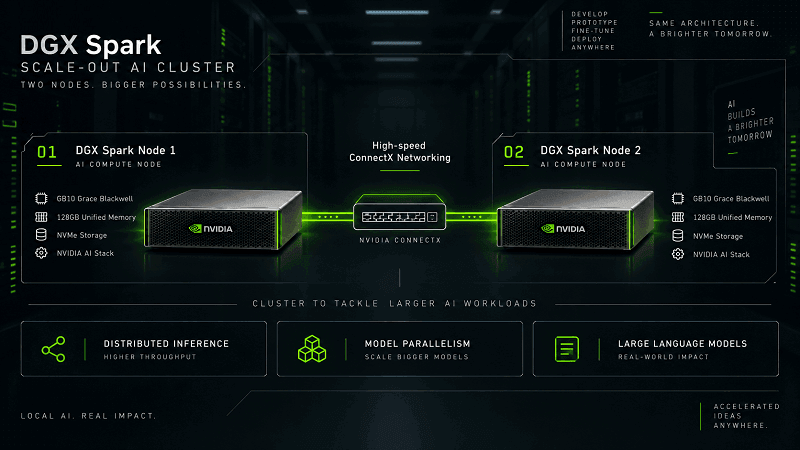
Two DGX Spark units can be linked over ConnectX to reach models up to 405B parameters. Section 10 covers how to plan that setup.
Before You Begin: Choose a Setup Path
The DGX Spark supports two first-boot paths. Choose before you connect peripherals, because powering on starts the process immediately.
| Setup path | Best for | What you need |
| Desktop (standalone) | First-time owners who want a guided screen | HDMI display, USB or Bluetooth keyboard and mouse, power adapter |
| Headless (network appliance) | Users who want the Spark as a server on the network | The Quick Start card, a computer or phone to run setup, a Wi-Fi or wired network |
Whichever path you choose, connect all peripherals before applying power. For the desktop path, plug in the monitor, keyboard, and mouse first. For headless setup, be ready on the setup computer before you power the Spark on.
What’s in the Box
The retail box contains:
- 1 x NVIDIA DGX Spark main unit
- 1 x AC power cord
- 1 x USB-C DC power adapter
- 1 x printed Quick Start Guide card
The printed card matters for headless setup: it lists the unit’s Wi-Fi hotspot name, password, and the system setup page URL.
Desktop (Standalone) Connections
The desktop path is the one most first-time owners use. To connect the DGX Spark in standalone mode:
1. Connect an HDMI monitor.
2. Connect a USB or Bluetooth keyboard and mouse. If no input device is detected after power-on, the system prompts you to enter Bluetooth pairing mode.
3. Connect the power adapter. Important: use only the leftmost Type-C port.
4. Press the power button.
First Boot and Initial Setup Wizard (Desktop)
After power-on in desktop mode, the DGX Spark launches the first-time setup wizard on the connected display. Follow these steps:
1. Language and time zone. Select your preference. The input field auto-filters as you type.
2. Keyboard layout. Choose the correct layout. This step appears only when you use a physical display.
3. License agreement. Read and accept the terms. The OS is pre-installed, so this is a click-through.
4. Create user account. Set a username and password for login.
5. User Experience Improvement Program (optional). Choose whether to share usage data with NVIDIA. You can leave this unchecked.
6. Wi-Fi setup. Select a network and enter the password. If you are already connected via Ethernet, this step is skipped.
7. Software download and installation. Once online, the system downloads and installs the official software image automatically.
Critical warning: do not power off or restart during the software installation. The image download and install can take around 10 minutes and the system may reboot several times. Interrupting this process has left some units unbootable, so let it finish.
When the installation completes, the system reboots. Log in with the account you created, and you will reach the DGX Spark desktop.
Headless (Network Appliance) Setup
The DGX Spark can run without a display as a network appliance. This is the setup path most homelab and server users want, and it was missing from the original version of this guide.
To set up headless:
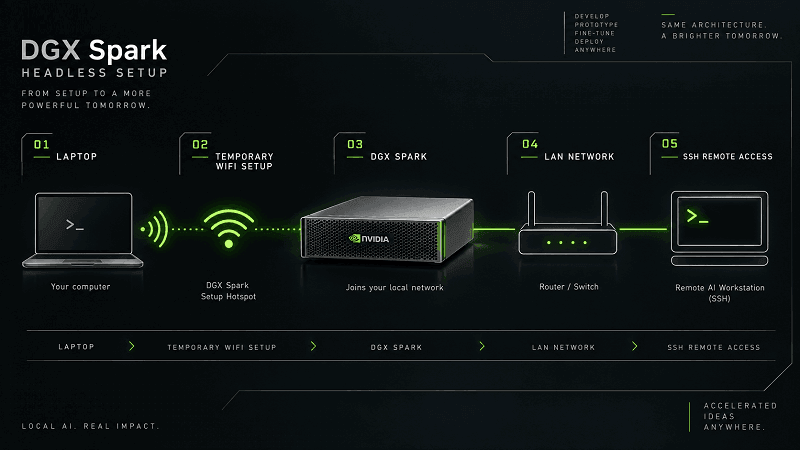
1. Do not attach a display or input devices. Keep only the power adapter connected.
2. Power on the unit. The Spark creates its own Wi-Fi hotspot on first boot.
3. Read the Quick Start card. It lists the hotspot SSID, password, and the setup page URL, usually in the form http://spark-<hostname>.local.
4. Join the hotspot from a laptop or phone.
5. Open the setup page in a browser, or navigate manually to the URL on the card.
6. Complete the same wizard as the desktop path: language, user account, license, Wi-Fi network selection. When the Spark joins your home network, its own hotspot shuts down. This is expected, and setup continues over the main network.
Two behaviors often confuse new owners. First, if the setup page starts returning a connection error after the install finishes, that is usually a sign of success, not failure. Second, verify readiness before you re-run setup: try ping spark-<hostname>.local or check that port 22 (SSH) is open. The DGX OS is based on Ubuntu 24.04, and OpenSSH is enabled by default.
Verifying Your DGX Spark System
Once you can log in, open a terminal with Ctrl+Alt+T and verify the system with these commands:
| Command | What it verifies |
lscpu | CPU hardware information |
free -h | Memory, including the 128 GB unified pool |
lsblk | Disk partitions and capacity |
nvidia-smi | GPU status for the GB10 |
docker -v | Pre-installed Docker engine version |
nvcc -V | Pre-installed CUDA version |
ip a | Network interfaces and IP address |
The storage example is a common point of confusion: a 4 TB drive reports as about 3.7 TB because lsblk and the OS report capacity in binary units based on 1024.
SSH Remote Access to DGX Spark
The DGX Spark runs a standard Ubuntu system with the OpenSSH server pre-installed, so remote management works like any other Linux box.
To find the IP address, run this in the terminal:
ip a
Then connect from another computer with any SSH client, such as PuTTY, MobaXterm, XShell, or FinalShell. Create a connection with the hostname or IP and port 22, open it, and log in with the username and password you created during setup. Accept the host-key prompt, and you have a remote command line on the DGX Spark.
For SSH on the same LAN you can often use the mDNS hostname, for example ssh <username>@spark-<hostname>.local, instead of tracking the IP. On Windows, an SSH client that supports mDNS resolution (or a hosts-file entry) makes this smoother. If you plan to expose the Spark to a larger network, our guide to the NVIDIA ConnectX-7 400Gb Ethernet adapter is the natural reference for the high-speed side of the platform.
Running Docker with GPU on DGX Spark
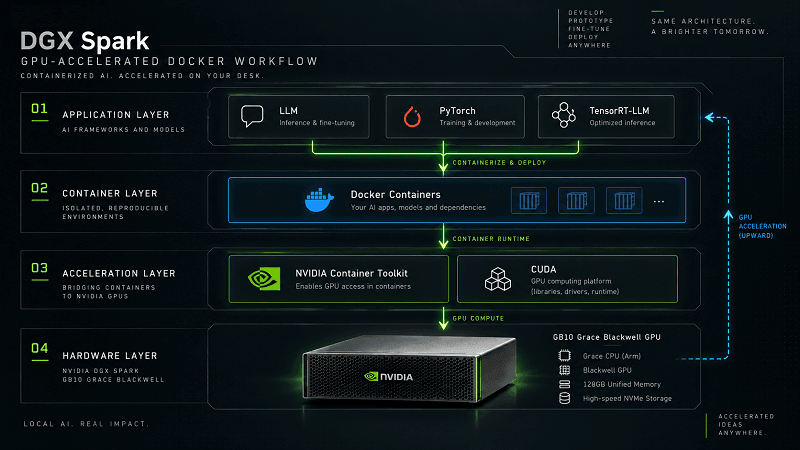
Docker is pre-installed and pre-configured for GPU access through the NVIDIA Container Toolkit. The toolkit includes the NVIDIA Container Runtime, Docker integration, GPU device configuration, and CUDA library configuration, so containers can use the GPU directly without extra setup.
Add your user to the docker group
By default, Docker requires sudo. Adding your user to the docker group lets you run Docker commands without sudo:
    sudo usermod -aG docker $USER
    newgrp docker
Log out and back in if newgrp does not take effect in your current shell.
Test GPU access in a container
Run a GPU-enabled PyTorch container to confirm the whole stack works:
    docker run --rm -it --gpus=all \
     -v "$PWD":/workspace \
     -w /workspace \
     nvcr.io/nvidia/pytorch:25.08-py3
Use straight ASCII dashes and quotes in this command. If you copy it from a page that has converted the dashes or quotes to typographic characters, the shell will fail with an obscure error, so retype or paste carefully. Inside the container, running nvidia-smi and nvcc -V should both produce normal output. That confirms the GPU and CUDA are available to Docker.
Run your first model
A setup guide should end with a working workload, not just a working shell. The simplest path is a local model runtime. Two popular options are:
- Ollama, which you can install on the DGX Spark to pull and run models such as Llama and Qwen in a few commands.
- NVIDIA NIM containers from the NGC catalog, for example the DGX Spark Qwen container, which require a free NGC account and
docker login nvcr.io.
NVIDIA publishes and maintains the official DGX Spark playbooks on GitHub, with step-by-step guides for Ollama, vLLM, SGLang, TensorRT-LLM, ComfyUI, PyTorch fine-tuning, and multi-Spark clustering. Start there for a workload tuned to this hardware. Container tags such as 25.08-py3 move on a release cadence, so confirm the current tag in the NVIDIA documentation at publish time.
Your DGX Spark is now configured and running AI locally.
Connecting Two DGX Spark Units
The original guide listed this as a headline capability but gave no instructions. Here is the planning context you need before you link a second unit.
Two interconnected DGX Spark units raise the addressable model size from 200B to about 405B parameters. The units connect over the NVIDIA ConnectX networking on the platform. NVIDIA supports multi-Spark clustering in ring and switch topologies, and the official playbooks include a multi-Spark section that documents the cabling and configuration.
To plan a two-unit deployment:
1. Confirm both units are on the same software image version before linking.
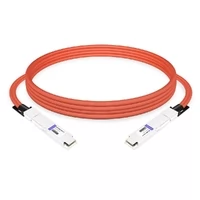
2. Connect the units over their ConnectX ports with a compatible cable; for scale-out you may also want a small switch between them.
3. Follow the multi-Spark cluster instructions in the official playbooks rather than improvising the network setup.
Because scale-out AI clusters depend on the interconnect, a two-Spark setup is exactly the case where the rest of a fiber and switching portfolio matters. For the network side, Dual-Plane and Multi-Plane Networking in AI Computing Centers explains how high-performance clusters separate traffic planes, and the ConnectX-7 400Gb adapter guide covers the adapter generation used in Blackwell-era systems.
DGX Dashboard, NVIDIA Sync, and Remote Access
Beyond SSH, the DGX Spark ships with two NVIDIA utilities worth knowing:
- DGX Dashboard is the built-in interface for system monitoring, updates, and JupyterLab access. It runs locally, commonly on port 11000. If you need it from another machine over SSH, forward the port with
ssh -L 11000:localhost:11000 <username>@<hostname>.local. - NVIDIA Sync detects installed IDEs, generates SSH keys, and launches VS Code connected to the Spark without a display.
For access from anywhere (outside your LAN), a tailnet-based tool such as Tailscale is the community-standard approach: install the Tailscale client, run sudo tailscale up --ssh, and you get SSH through your tailnet identity without managing keys. If you harden the firewall, allow inbound only on the tailscale interface.
Troubleshooting and FAQ
Why does my DGX Spark keep rebooting after first boot?
The first software install downloads and applies the full image and can reboot several times. Leave the unit powered until the process completes. A reboot loop during this phase, especially after an interrupted install, may require reinstalling the OS image.
The setup page stopped loading. Did I break it?
Usually not. When setup finishes, the Spark leaves the setup portal and joins your network. A connection error on the portal is commonly the success signal. Verify with ping spark-<hostname>.local or by testing SSH on port 22.
The Wi-Fi hotspot disappeared.
This is expected. The hotspot exists only until the Spark joins your Wi-Fi network during setup. From then on, manage it over the main network.
Which power port should I use?
Only the leftmost Type-C port. The other ports are not configured for power input.
Docker needs sudo even after I added my user.
Log out and back in, or run newgrp docker again in a fresh shell. The group change applies to new login sessions.
Can I run models bigger than 200B on one unit?
Not on a single DGX Spark. To reach about 405B parameters, interconnect two units over ConnectX as described in section 10.
Conclusion
This quick start guide has taken you from unboxing to a running AI workload on the NVIDIA DGX Spark: pick a setup path, complete first boot in desktop or headless mode, verify the system, enable SSH, confirm GPU access in Docker, and launch a first model. The two-unit and remote-access sections give you a path to grow the setup later.
The DGX Spark is available now as a personal AI desktop system at FiberMall. For the rack-scale Blackwell generation, read the NVIDIA GB200 superchip guide, and for the optics, cables, and switches that connect high-performance clusters, browse the FiberMall catalog. Set a reminder to re-check NVIDIA’s documentation each time you update the software image, since container tags and OS versions move quickly.
Related Products:
-
 NVIDIA DGX Spark (940-54242-0006-000): Personal AI Desktop Supercomputer - Built on NVIDIA GB10 Grace Blackwell Superchip
$7800.00
NVIDIA DGX Spark (940-54242-0006-000): Personal AI Desktop Supercomputer - Built on NVIDIA GB10 Grace Blackwell Superchip
$7800.00
-
NVIDIA MSN4700-WS2FC Spectrum-3 Based 400GbE 1U Open Ethernet Switch with Cumulus Linux, 32 QSFP-DD Ports, 2 AC Power Supplies, x86 CPU, Standard Depth, P2C Airflow, Rail Kit
$35900.00
-
NVIDIA MSN4600-CS2FC Spectrum-3 Based 100GbE 2U Open Ethernet Switch with Cumulus Linux, 64 QSFP28 Ports, 2 AC Power Supplies, x86 CPU, Standard Depth, P2C Airflow, Rail Kit
$23000.00
-
NVIDIA MSN4600-VS2FC Spectrum-3 Based 200GbE 2U Open Ethernet Switch with Cumulus Linux, 64 QSFP56 Ports, 2 AC Power Supplies, x86 CPU, Standard Depth, P2C Airflow, Rail Kit
$29000.00
-
NVIDIA SN5400 Spectrum-4 Based 400GbE 2U Open Ethernet Switch with Cumulus Linux Authentication, 64 QSFP56-DD Ports, 2xSFP28 Ports, 2 AC Power Supplies, x86 CPU, Secure Boot, Standard Depth, C2P Airflow, Tool-less Rail Kit
$39000.00
-
NVIDIA SN5600 (920-9N42F-00RI-7C0) Spectrum-4 based 800GbE 2U Open Ethernet switch with Cumulus Linux authentication, 64 OSFP ports and 1 SFP28 port, 2 power supplies (AC), x86 CPU, Secure Boot, standard depth, C2P airflow, tool-less rail kit
$58000.00
-
NVIDIA MQM8790-HS2F Quantum HDR InfiniBand Switch, 40 x HDR QSFP56 Ports, Two Power Supplies (AC), Unmanaged, x86 Dual Core, Standard Depth, P2C Airflow, Rail Kit
$18500.00
-
NVIDIA MQM8700-HS2F Quantum HDR InfiniBand Switch, 40 x HDR QSFP56 Ports, Two Power Supplies (AC), Managed, x86 Dual Core, Standard Depth, P2C Airflow, Rail Kit
$17000.00
-
NVIDIA MQM9790-NS2R Quantum-2 NDR InfiniBand Switch, 64-ports NDR 400Gb/s, 32 OSFP Ports, Unmanaged, P2C Airflow (reverse)
$30000.00
-
NVIDIA MMA4Z00-NS400 Compatible 400G OSFP SR4 Flat Top PAM4 850nm 30m on OM3/50m on OM4 MTP/MPO-12 Multimode FEC Optical Transceiver Module
$400.00
-
NVIDIA MMA4Z00-NS-FLT Compatible 800GBASE 2 x SR4/SR8 OSFP RHS/Flat Top PAM4 850nm 100m DOM Dual MPO-12 MMF Optical Transceiver Module
$600.00
-
NVIDIA MMA4Z00-NS Compatible 800GBASE 2 x SR4/SR8 OSFP PAM4 850nm 100m DOM Dual MPO-12 MMF Optical Transceiver Module
$550.00
-
NVIDIA MMS4X00-NM Compatible 800GBASE 2 x DR4/DR8 OSFP IHS/Closed Finned Top PAM4 1310nm 500m DOM Dual MTP/MPO-12 SMF Optical Transceiver Module
$600.00
-
NVIDIA MMS4X00-NM-FLT Compatible 800GBASE 2 x DR4/DR8 OSFP Flat Top PAM4 1310nm 500m DOM Dual MTP/MPO-12 SMF Optical Transceiver Module
$650.00
-
NVIDIA MMS4X00-NS400 Compatible 400G OSFP DR4 Flat Top PAM4 1310nm MTP/MPO-12 500m SMF FEC Optical Transceiver Module
$450.00
-
NVIDIA(Mellanox) MMA1T00-HS Compatible 200G Infiniband HDR QSFP56 SR4 850nm 100m MPO-12 APC OM3/OM4 FEC PAM4 Optical Transceiver Module
$139.00
-
NVIDIA MFP7E10-N010 Compatible 10m (33ft) 8 Fibers Low Insertion Loss Female to Female MPO Trunk Cable Polarity B APC to APC LSZH Multimode OM3 50/125
$47.00
-
NVIDIA MCP7Y00-N003-FLT Compatible 3m (10ft) 800G Twin-port OSFP to 2x400G Flat Top OSFP InfiniBand NDR Breakout DAC
$260.00
-
NVIDIA MCP7Y70-H002 Compatible 2m (7ft) 400G Twin-port 2x200G OSFP to 4x100G QSFP56 Passive Breakout Direct Attach Copper Cable
$155.00
-
NVIDIA MCA4J80-N003-FTF Compatible 3m (10ft) 800G Twin-port 2x400G OSFP to 2x400G OSFP InfiniBand NDR Active Copper Cable, Flat top on one end and Finned top on other
$600.00