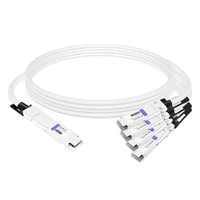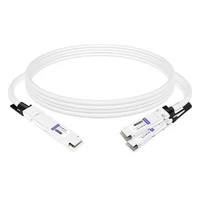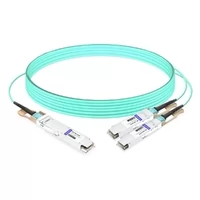

At 2:00 a.m., the job scheduler on Raj’s 128-GPU cluster started throwing NCCL timeout errors. The GPUs were fine. The switches showed green LEDs. Every ibstat port reported Physical state: LinkUp. Yet training throughput had collapsed to 12% of normal. Raj’s first instinct was to blame the framework. Three hours later, he found the real problem: a single 400G DAC cable with a cracked latch was flapping every 90 seconds, forcing the subnet manager into a loop of heavy sweeps. That’s the cruel thing about InfiniBand troubleshooting. The symptom rarely lives at the same layer as the cause.
If you’ve ever chased a performance ghost through an InfiniBand fabric, you already know the feeling. This guide gives you a practical, layer-by-layer method for InfiniBand troubleshooting in 2026. We’ll start at the physical layer, move up through link, network, and transport, and finish with a checklist you can use under pressure. We’ll also look at why cable and optic quality matters, and where FiberMall-tested physical-layer products fit in.
For a broader view of how InfiniBand works, see our guide to InfiniBand architecture. If your ports are stuck in Initializing, our InfiniBand subnet manager guide covers the SM side in depth.

The InfiniBand Troubleshooting Layer Cake
InfiniBand failures can look like software problems when they’re really physical, or like fabric problems when they’re really configuration. The best way to avoid chasing your tail is to work in layers:
1. Physical — cables, optics, connectors, signal integrity
2. Link — port state, LID assignment, VPI mode
3. Network — topology discovery, routing, subnet manager health
4. Transport / Performance — RDMA, MPI, NCCL, bandwidth, latency
5. Application — job scheduler settings, GPU placement, framework config
Most admins skip straight to step 4 or 5. Don’t. A flaky cable at layer 1 will masquerade as an MPI hang at layer 4. Start low and work up.

Physical Layer: Cables, Optics, and Signal Integrity
The physical layer is where InfiniBand troubleshooting usually pays off fastest. Green LEDs don’t mean a link is clean. They mean the link is up well enough to pass basic negotiation. Real signal integrity shows up in counters, not lights.
Start with the obvious. Reseat the cable. Check for bent pins, debris, cracked latches, or bend radii that are too tight for DAC. Then run ibstat:
Port 1:
State: Active
Physical state: LinkUp
Base lid: 5
SM lid: 3
Rate: 400
Base MTU: 4096
Link layer: InfiniBand
You’re looking for Physical state: LinkUp, a non-zero Base lid, the expected Rate, and Link layer: InfiniBand. If any of those are wrong, stay at this layer.
Next, check error counters. ibqueryerrors gives you a fabric-wide view:
ibqueryerrors -c -r
Focus on these counters:
| Counter | What it means | When to worry |
| SymbolErrors | Physical-layer symbol errors | Rising steadily, not just during boot |
| LinkDowned | Link went down | Repeated counts without a reboot |
| LinkRecovers | Auto-recovery events | Fine occasionally, bad in clusters |
| LocalLinkIntegrityErrors | Signal integrity threshold crossed | Replace the cable or transceiver |
| RcvErrors / RcvRemotePhysErrors | Receive-side physical errors | Usually tied to the same bad connection |
| PortXmitDiscards | Packets dropped at egress | Congestion or routing issue |
A few SymbolErrors during link training are normal. A counter that climbs every minute is not. That pattern almost always points to a cable, connector, or transceiver. Learning to read these InfiniBand port errors is the fastest way to spot physical-layer problems before they bring down a job.
For a baseline, clear the counters and watch them for five minutes under load:
ibclearerrors
# wait 5 minutes
ibqueryerrors -c -r
If SymbolErrors or LinkDowned counts rise during that window, treat the connection as suspect. Swap in a known-good cable and watch again. If the errors stop, you’ve found the fault. This simple swap test rules out most InfiniBand cable signal integrity issues without needing a cable tester.
DAC vs AOC vs Transceiver Symptoms
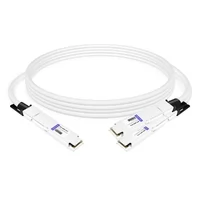
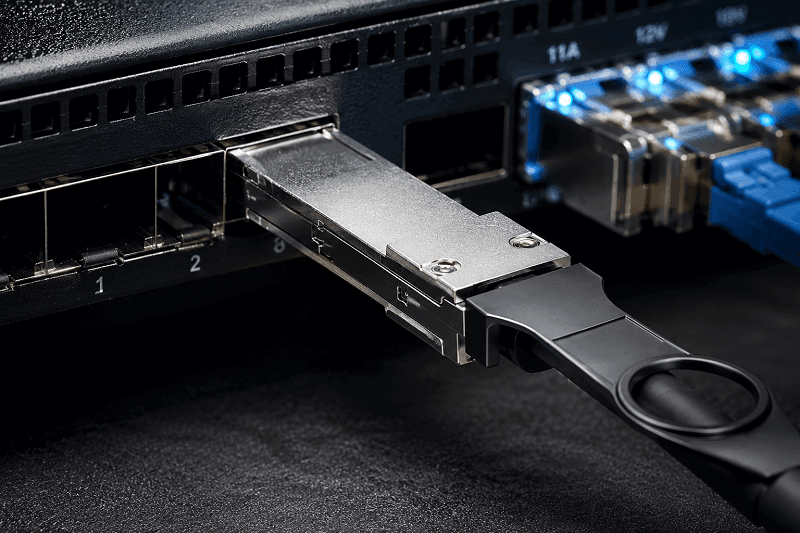
Direct attach copper (DAC) cables fail differently than active optical cables (AOC) or pluggable optics. DAC is cheap and low-latency, but it’s sensitive to length, bend radius, and EMI. At 400G and 800G, a DAC that’s 0.5 m too long or routed through a sharp bend can produce pre-FEC errors that look like fabric congestion.
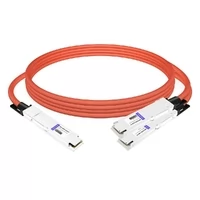
AOC cables are immune to EMI and much more forgiving on bend radius, but they draw 1.5–2.5 W per end and their lasers can degrade with heat. If an AOC port is dead or showing low RX power, check the switch’s show inventory or show modules output for I2C visibility.
Pluggable optical transceivers add another variable: compatibility. A module may light up yet negotiate poorly with a specific switch ASIC. This is why MSA compliance alone isn’t enough; real-world compatibility testing matters.
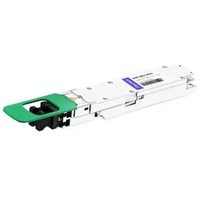
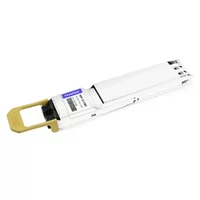
FiberMall tests its InfiniBand-compatible DAC, AOC, and optical transceiver products against major switch platforms before shipping. Stable physical-layer components reduce the error-counter noise that sends admins chasing SM or routing problems. For more on choosing the right cable type, see our guide to InfiniBand cables.
Link Layer: When Ports Stay in Initializing
A port stuck in State: Initializing is the most common InfiniBand troubleshooting call. In fact, “InfiniBand port stuck Initializing” is one of the most searched support phrases for a reason. The hardware link is usually fine. The protocol layer is waiting for a subnet manager to assign a Local Identifier (LID).
Typical ibstat output looks like this:
Port 1:
State: Initializing
Physical state: LinkUp
Base lid: 0x0
SM lid: 0x0
Base lid: 0x0 is the giveaway. No SM has claimed the port. Check that OpenSM is installed and running:
systemctl status opensm
sudo systemctl start opensm
sudo systemctl enable opensm
On some distributions the service is called opensmd. On RHEL-family systems you may also need to restart the RDMA stack:
sudo systemctl restart openibd
sudo systemctl restart opensm
Another common cause is a VPI adapter configured in Ethernet mode. If ibstat shows Link layer: Ethernet, the HCA isn’t running InfiniBand at all. Use Mellanox Firmware Tools to flip it:
sudo systemctl start mst
sudo mst status
sudo mlxconfig -d /dev/mst/mt4119_pciconf0 set LINK_TYPE_P1=1
Then reboot. In Kubernetes clusters using the NVIDIA Network Operator, IB interfaces sometimes stay Initializing because the operator’s SM deployment fails or conflicts with a host-level OpenSM. Check the operator logs before manually installing OpenSM, or you can end up with two SMs fighting for mastership.
Network Layer: Topology, Routing, and the Subnet Manager
Once ports are Active, the next layer is fabric topology and routing. The tools here are sminfo, ibnetdiscover, and especially ibdiagnet.
sminfo tells you which SM is master and its priority:
sminfo
ibnetdiscover prints the fabric topology:
ibnetdiscover
ibdiagnet is the workhorse for InfiniBand ibdiagnet-based fabric health checks. It discovers the fabric, checks links, gathers counters, and produces a report:
ibdiagnet
The output includes a topology file, a link dump, and a report of any ports that exceed the default error thresholds. Pay attention to the “Bad Links” section. A single bad link can drag down the performance of an entire multi-path route.
Look for repeated heavy sweeps in /var/log/opensm.log. A heavy sweep rediscovers the entire fabric and rebuilds forwarding tables. It should only happen after a topology change. If it runs constantly, something is flapping at the physical layer or a node is rebooting in a loop.
Partition Key (PKEY) misconfiguration is another network-layer gotcha. Two nodes can both be Active yet unable to talk if they’re in different partitions. Check /etc/rdma/partitions.conf and verify both endpoints have full membership in the same partition. A common mistake is giving a node limited membership when it needs full membership to talk to every other member.
You can check the partition membership of a local port with:
cat /sys/class/infiniband/mlx5_0/ports/1/pkeys/*
The default partition is 0xffff for full membership and 0x7fff for limited. If your application expects a custom partition like 0x8001 but the port only shows the default, OpenSM has not applied your partition file. Restart OpenSM after any change to /etc/rdma/partitions.conf.
SM failover problems show up here too. If you run multiple SMs, set priorities deliberately. A GUID tiebreaker can produce a surprise master change that appears as a brief fabric-wide pause. For mission-critical fabrics, run the SM on dedicated management hosts, not on compute nodes that reboot during jobs.

Transport and Performance Layer: Diagnosing Bottlenecks
Now the fun part: why is throughput low? Start with native InfiniBand connectivity before you blame MPI or NCCL.
ibping tests basic IB reachability:
# Target node
ibping -S
# From another node
ibping -c 100 <target_lid>
ibtracert traces the IB path between two LIDs:
ibtracert <source_lid> <dest_lid>
perfquery reads counters for a specific LID and port:
perfquery <lid> <port>
For bandwidth testing, use qperf or run the nccl-tests all_reduce_perf benchmark if you’re in an AI cluster. Don’t trust iperf over IPoIB to represent native RDMA performance. IPoIB adds overhead and usually tops out well below the line rate.
When debugging NCCL over InfiniBand, set these environment variables to expose what’s happening:
export NCCL_DEBUG=INFO
export NCCL_IB_HCA=mlx5_0,mlx5_1
export NCCL_SOCKET_IFNAME=ib0
NCCL_DEBUG=INFO prints the transport selection and any IB failures. If NCCL falls back to sockets, you’ll see it in the log. That usually means the IB HCA is not in InfiniBand mode, the SM is missing, or the PKEY is wrong.
Common transport-layer InfiniBand performance bottleneck causes include:
IPoIB instead of native RDMA — check that your application uses verbs or rc transport, not IP over IB.
Mismatched speed/width — ibstat Rate should match your cable and switch capability. A 400G link showing 200G often means a degraded connection.
Congestion — rising PortXmitDiscards or XmtWait indicates buffer pressure. Enable congestion control and verify SL-to-VL mappings.
SHARP or adaptive routing not configured — at AI scale, these features often require UFM. Raw OpenSM won’t give you the same performance.
Drive bottlenecks — sometimes the network is fine and the local NVMe or dataset loader is the constraint.
Here’s a mini-story from a real deployment. An AI infrastructure team at a biotech startup saw NCCL all-reduce bandwidth at 38% of expected on their 64-GPU NDR cluster. They suspected the switches. After two days of tuning, they ran ibdiagnet and found a single switch port negotiating at 2× width instead of 4×. A cable swap restored full bandwidth. The cluster hadn’t failed. It had just quietly downgraded itself.
InfiniBand Troubleshooting Checklist
Use this checklist when a fabric misbehaves. Work top to bottom within each layer before moving up.
Here is a quick symptom-to-layer map for the most common InfiniBand troubleshooting calls:
| Symptom | Most Likely Layer | First Check |
| State: Initializing | Link | Is OpenSM running? |
| Link layer: Ethernet | Link | mlxconfig VPI mode |
| Rising SymbolErrors | Physical | Cable, optic, or connector |
| Repeated heavy sweeps | Physical / Network | Flapping link or rebooting node |
| Low throughput | Transport / Performance | Native RDMA, speed/width, congestion |
| NCCL hangs | Link / Network | PKEY, SM reachability, HCA mode |
| High PortXmitDiscards | Transport / Performance | Congestion control, SL-to-VL mapping |
Physical layer
Reseat cables and optics
Inspect connectors for bent pins or debris
Verify bend radius, especially for DAC
Check ibstat for LinkUp, correct Rate, and InfiniBand link layer
Run ibqueryerrors -c -r and watch SymbolErrors, LinkDowned, LocalLinkIntegrityErrors
Link layer
Confirm OpenSM or opensmd is running and enabled
Check ibstat for State: Active and non-zero Base LID
If Link layer: Ethernet, use mlxconfig to set InfiniBand mode
In Kubernetes, verify Network Operator SM deployment
Network layer
Run sminfo to confirm master SM
Run ibnetdiscover to verify topology
Run ibdiagnet for fabric-wide health
Check /var/log/opensm.log for repeated heavy sweeps
Verify PKEY membership in /etc/rdma/partitions.conf
Transport / performance layer
Test with ibping and ibtracert
Check perfquery for XmtDiscards and XmtWait
Run nccl-tests or qperf for bandwidth/latency baselines
Confirm native RDMA, not IPoIB, is in use
Verify speed/width negotiation matches hardware capability
Application layer
Review NCCL environment variables (NCCL_IB_DISABLE, NCCL_SOCKET_IFNAME)
Check job scheduler GPU-to-IB binding
Compare against a known-good benchmark
If you hit a wall, isolate the problem. Move one node to a known-good cable, switch port, and SM. If the issue follows the node, it’s the node. If it stays with the port, it’s the fabric.
When to Escalate to Vendor Support
Most InfiniBand troubleshooting stops at the edge of your own hardware. But some problems need vendor help. Escalate when you see persistent firmware crashes, uncorrectable ECC errors in switch logs, or widespread link degradation across multiple racks. Vendors can access diagnostic modes and internal counters that user-space tools cannot.
Before you open a ticket, gather the standard package: ibdiagnet output, opensm.log, HCA and switch firmware versions, driver versions, and a clear timeline of when the problem started. The faster you can hand over that package, the faster the vendor can point to a root cause.
When the Problem Is the Cable, Not the Config
Most InfiniBand troubleshooting guides end with commands. Let’s talk about what the commands are actually measuring. Rising SymbolErrors, LocalLinkIntegrityErrors, and unexplained heavy sweeps are often the fabric’s way of telling you the physical layer is lying.
We saw this with a customer running a 32-node training cluster. They had replaced branded optics with cheaper third-party units to save budget. The links came up, but error counters crept upward over hours. The SM logged repeated heavy sweeps. Ports cycled between Active and Initializing. The admin spent a day tuning OpenSM before realizing the optics were the problem.
After switching to MSA-compatible modules that had been tested against their switch firmware, the error counters flattened. The SM log went quiet. The fix wasn’t a config change. It was a component change.
That story is worth remembering because InfiniBand fabrics are unforgiving at 400G and 800G. Signal margins are thinner. Pre-FEC error budgets are tighter. A cable or optic that looks fine at lower speeds can fail silently at NDR or XDR. For a deeper look at 800G design considerations, see our 800G NDR InfiniBand deployment guide. FiberMall tests its InfiniBand-compatible DAC, AOC, and optical transceiver products for signal integrity and switch compatibility before shipment. The goal is to remove the physical layer from your troubleshooting list.
If you are planning or expanding an InfiniBand deployment in 2026, start with the logical diagnostics in this guide. Then make sure the physical layer can support them. Explore FiberMall’s InfiniBand-compatible cables, optics, and transceivers for your fabric.
Conclusion
InfiniBand troubleshooting works best when you respect the layers. Start with cables and optics, confirm link state and LID assignment, verify the subnet manager and topology, then move up to transport and application performance. Jumping straight to NCCL tuning or MPI settings usually wastes time when the real issue is a flapping cable or a missing SM.
The key tools haven’t changed much: ibstat, ibqueryerrors, perfquery, ibdiagnet, ibping, and ibtracert. What has changed in 2026 is the margin for error. At NDR and XDR speeds, small physical-layer problems become big fabric problems fast. Good InfiniBand troubleshooting starts with good diagnostics, but it ends with good components.
If you are building or maintaining an InfiniBand fabric this year, keep this guide handy. And when the counters start climbing, check the physical layer first. Explore FiberMall’s InfiniBand-compatible cables, optics, and transceivers to keep your fabric stable from the ground up.
Related Products:
-
 NVIDIA MMA4Z00-NS400 Compatible 400G OSFP SR4 Flat Top PAM4 850nm 30m on OM3/50m on OM4 MTP/MPO-12 Multimode FEC Optical Transceiver Module
$400.00
NVIDIA MMA4Z00-NS400 Compatible 400G OSFP SR4 Flat Top PAM4 850nm 30m on OM3/50m on OM4 MTP/MPO-12 Multimode FEC Optical Transceiver Module
$400.00
-
NVIDIA MMS4X00-NS400 Compatible 400G OSFP DR4 Flat Top PAM4 1310nm MTP/MPO-12 500m SMF FEC Optical Transceiver Module
$450.00
-
NVIDIA MMA1Z00-NS400 Compatible 400G QSFP112 VR4 PAM4 850nm 50m MTP/MPO-12 OM4 FEC Optical Transceiver Module
$385.00
-
NVIDIA MMS1X00-NS400 Compatible 400G NDR QSFP112 DR4 PAM4 1310nm 500m MPO-12 with FEC Optical Transceiver Module
$500.00
-
NVIDIA MCP7Y70-H001 Compatible 1m (3ft) 400G Twin-port 2x200G OSFP to 4x100G QSFP56 Passive Breakout Direct Attach Copper Cable
$120.00
-
NVIDIA MCP7Y60-H001 Compatible 1m (3ft) 400G OSFP to 2x200G QSFP56 Passive Direct Attach Cable
$99.00
-
NVIDIA MFA7U10-H003 Compatible 3m (10ft) 400G OSFP to 2x200G QSFP56 twin port HDR Breakout Active Optical Cable
$750.00
-
NVIDIA MMA4Z00-NS Compatible 800GBASE 2 x SR4/SR8 OSFP PAM4 850nm 100m DOM Dual MPO-12 MMF Optical Transceiver Module
$550.00
-
NVIDIA MMA4Z00-NS-FLT Compatible 800GBASE 2 x SR4/SR8 OSFP RHS/Flat Top PAM4 850nm 100m DOM Dual MPO-12 MMF Optical Transceiver Module
$600.00
-
NVIDIA MMS4X00-NM Compatible 800GBASE 2 x DR4/DR8 OSFP IHS/Closed Finned Top PAM4 1310nm 500m DOM Dual MTP/MPO-12 SMF Optical Transceiver Module
$600.00
-
NVIDIA MMS4X00-NM-FLT Compatible 800GBASE 2 x DR4/DR8 OSFP Flat Top PAM4 1310nm 500m DOM Dual MTP/MPO-12 SMF Optical Transceiver Module
$650.00
-
NVIDIA MMS4X50-NM Compatible 800G 2x FR4 OSFP IHS/Closed Finned Top PAM4 1310nm 2km DOM Dual Duplex LC SMF InfiniBand NDR Optical Transceiver Module
$1000.00
-
NVIDIA MCP7Y00-N001 Compatible 1m (3ft) 800Gb Twin-port OSFP to 2x400G OSFP InfiniBand NDR Breakout Direct Attach Copper Cable
$160.00
-
NVIDIA MCA7J60-N004 Compatible 4m (13ft) 800G Twin-port OSFP to 2x400G OSFP InfiniBand NDR Breakout Active Copper Cable
$800.00
-
NVIDIA MMS4A00 (980-9IAH1-00XM00) Compatible 1.6T 2 x DR4/DR8 OSFP224 PAM4 1311nm 500m IHS/Finned Top Dual MPO-12 SMF Optical Transceiver Module
$1500.00
-
NVIDIA MMS4A50 Compatible 1.6T 2xFR4/FR8 OSFP224 PAM4 1310nm 2km IHS/Finned Top Dual Duplex LC SMF Optical Transceiver Module
$1800.00
-
NVIDIA MMS4A00-RHS Compatible 1.6T 2xDR4/DR8 OSFP224 PAM4 1311nm 500m RHS/Flat Top Dual MPO-12/APC InfiniBand XDR SMF Optical Transceiver Module
$2000.00
-
NVIDIA MCA7K20-X001 Compatible 1m (3ft) Twin-port 2x800Gb/s OSFP224 IHS/Finned Top to 4x400Gb/s OSFP224 RHS/Flat Top InfiniBand XDR Active Copper Splitter Cable
$2059.00