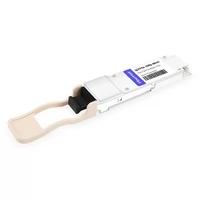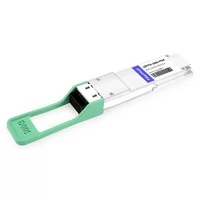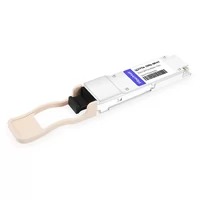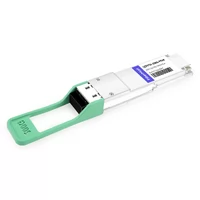

At 2:47 AM, the NOC page said spine-04 port Eth1/31 was down. The QSFP56 module showed green in the chassis. DOM looked fine. But traffic had stopped.
The on-call engineer spent 40 minutes checking fiber, reseating the module, and swapping cables before discovering the real problem. The remote end had auto-negotiated to a different FEC mode. The link was up. The data wasn’t.
That’s the hardest thing about troubleshooting QSFP56. PAM4 signaling hides errors until they become failures. A module can negotiate, pass a quick ping test, and still corrupt frames under load. This guide gives you a systematic workflow to isolate QSFP56 link down, CRC, FEC, and DOM issues fast, with vendor-specific commands and thresholds you can use at 3 AM.
Need a replacement module fast? Check QSFP56 compatibility with your switch platform and failure symptoms.
Why QSFP56 Troubleshooting Is Different From QSFP28
QSFP28 uses NRZ signaling: two voltage levels, one bit per symbol. It’s forgiving. A dirty connector might add loss, but the link often stays up.
QSFP56 uses PAM4: four voltage levels, two bits per symbol. The signal-to-noise ratio drops by roughly 9-10 dB. The voltage spacing between levels is compressed. A small amount of connector loss, crosstalk, or thermal drift can close the eye diagram enough to cause errors.
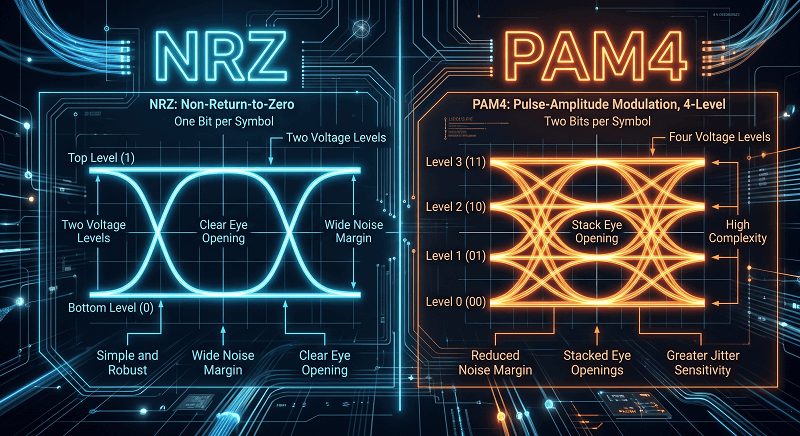
The result: “link up” does not mean “link healthy.”
FEC is mandatory for QSFP56, not optional. IEEE 802.3bs specifies RS-FEC (544,514). Without it, the native bit error rate of ~2.4×10⁻⁴ would drop packets constantly. FEC corrects errors in real time, but it also means both ends must agree on the mode.
This changes troubleshooting. You can’t trust the link LED. You have to verify FEC counters, DOM trends, and sustained traffic behavior.
The Three-Layer Isolation Model
When a QSFP56 link fails, isolate it in this order.
Physical layer. Fiber, connectors, modules, cables. This is where most failures happen.
Configuration layer. Speed, FEC, breakout mode, port channel settings. This is where silent failures hide.
Management layer. DOM, CMIS register access, vendor EEPROM coding. This tells you why the other layers are failing.
Start at the physical layer and work up. A configuration mismatch looks like a hardware failure if you check it first.
Symptom 1: QSFP56 Link Down
Quick Triage
Ask three questions in order:
- Is the module detected by the switch?
- Is the correct speed negotiated?
- Is FEC aligned on both ends?
If the answer to any of these is no, the link stays down regardless of how clean the fiber is.
Common Causes
| Cause | Indicator | First Check |
| Unsupported transceiver | “Unsupported” or “gbic-invalid” log | Vendor override command |
| Speed/FEC mismatch | Link at wrong speed or down | FEC config on both ends |
| Dirty/damaged connector | Intermittent or no link | Fiber microscope inspection |
| Fiber type mismatch | MMF module on SMF plant | Module label vs. cable jacket |
| Exceeding reach | Link up but high errors | Loss budget calculation |
Vendor-Specific Detection Commands
| Vendor | Command | What It Shows |
| Cisco (NX-OS) | show interface transceiver | Module presence, type, DOM |
| Cisco (IOS-XE) | show interface <port> transceiver details | DOM thresholds, vendor info |
| Arista | show interfaces status | Speed, duplex, link state |
| Arista | show transceiver | Module detection summary |
| Juniper | show chassis hardware | Installed modules by FPC/PIC |
| Juniper | show interfaces diagnostics optics | Optical power and alarms |
| NVIDIA/Mellanox | ibstat | InfiniBand link state |
| NVIDIA/Mellanox | mlxlink -d <device> | PHY and FEC counters |
If the module isn’t detected at all, reseat it. If it still isn’t detected, check the vendor lock status before blaming hardware.

Symptom 2: Link Up but CRC Errors
This is the classic QSFP56 trap. The LED is green. The CLI shows up/up. But counters show CRC errors, packet loss, or retransmits.
CRC errors on QSFP56 almost always point to the physical layer. PAM4’s tight eye margin means minor signal degradation becomes frame corruption.
CRC Isolation Steps
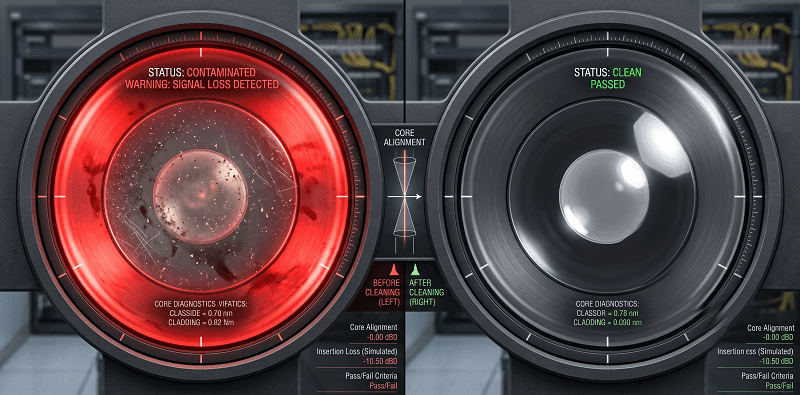
- Clean and reseat connectors.Use a fiber microscope first. A contaminated MPO or LC connector is the #1 cause of CRC errors on 200G links. Clean with an approved one-click cleaner, inspect again, then reconnect.
- Swap the cable.If CRC errors follow the cable, replace it. If they stay with the port, the issue is the transceiver or switch.
- Swap the transceiver.Move the suspected module to a known-good port. If the errors follow, replace the module.
- Check FEC counters.Corrected codewords are normal. A rising count of uncorrected codewords means the physical layer is failing.
- Measure optical power.Compare RX power at the receiver against the module’s sensitivity spec. Add a loss budget if you’re near the limit.
When CRC Errors Are Normal
FEC-corrected codewords are expected on PAM4 links. They prove FEC is working. What matters is the uncorrected codeword count and the rate of growth.
A good rule of thumb: if uncorrected FEC errors are increasing while traffic is steady, you have a physical-layer problem. Clean, swap, or replace until it stops.
Symptom 3: FEC Alignment Failures
FEC mismatch is the most common cause of “link up, no traffic” on QSFP56.
Why FEC Is Mandatory
PAM4’s native bit error rate is too high for reliable packet delivery. RS-FEC (544,514) corrects up to 15 symbols per codeword. Without it, a QSFP56 link would drop frames constantly.
Both ends must use the same FEC mode. If one side has RS-FEC enabled and the other doesn’t, the link may negotiate but pass no usable traffic.
FEC Mismatch Symptoms
- Link state shows up/up
- No traffic passes
- Ping fails
- Link falls back to 100G or 40G
- Flapping under sustained load
FEC Configuration by Vendor
| Vendor | Enable RS-FEC | Verify FEC Status |
| Cisco NX-OS | interface <port>; fec rs | show interface fec |
| Cisco IOS-XE | interface <port>; fec rs | show interface <port> fec |
| Arista | interface <port>; fec rs | show interfaces <port> phy detail |
| Juniper | set interfaces <port> gigether-options fec rs | show interfaces <port> extensive | match FEC |
| NVIDIA/Mellanox | IB mode auto-negotiates FEC | mlxlink -d <device> –show_fec |
Always lock FEC manually on production links. Auto-negotiation can choose different modes during firmware upgrades or reboots.
Symptom 4: DDM/DOM Alarms
QSFP56 modules report Digital Diagnostic Monitoring (DDM) or Digital Optical Monitoring (DOM) values via the CMIS 4.0 interface. These values predict failure before the link goes down.
Standard DDM Parameters
- Temperature: Case temperature in Celsius
- Voltage: 3.3V supply rail
- Laser bias current: Per-lane drive current
- TX optical power: Transmitted power per lane
- RX optical power: Received power per lane
Common Alarm Thresholds
| Parameter | Normal Range | Alarm Condition | Action |
| Temperature | 0-70°C commercial | >70°C or <0°C | Improve cooling |
| Voltage | 3.13-3.47V | Outside ±5% | Check power supply |
| RX power (SR4) | -8.4 to +4.0 dBm | Below sensitivity | Clean fiber, check loss |
| TX power (SR4) | -4.2 to +4.7 dBm | Zero or too high | Module fault |
| RX power (LR4) | -10.6 to +4.5 dBm | Below sensitivity | Check fiber plant |
Reading DOM by Vendor
| Vendor | Command |
| Cisco | show interface <port> transceiver details |
| Arista | show interfaces <port> transceiver detail |
| Juniper | show interfaces diagnostics optics <port> |
| NVIDIA/Mellanox | mlxlink -d <device> –show_module |
Set SNMP traps or telemetry alerts for RX power deviations and temperature. A module running at 68°C in a 70°C-rated environment will fail under summer load.
Symptom 5: Module Not Recognized
If the switch rejects the module, you usually see “unsupported transceiver,” “gbic-invalid,” or no output at all.
Unsupported Transceiver Fixes
| Vendor | Command / Action |
| Cisco NX-OS | service unsupported-transceiver |
| Cisco IOS-XE | service unsupported-transceiver |
| Arista | touch /mnt/flash/enable3px or service unsupported-transceiver |
| Juniper | set chassis fpc 0 pic 0 allow-non-juniper-optics |
Some newer platforms also require a firmware profile or license for third-party QSFP56 modules. Check the switch datasheet before ordering.
EEPROM and Coding Issues
Even with vendor override enabled, a poorly coded third-party module may:
- Show wrong speed capability
- Report invalid DOM values
- Fail to negotiate FEC
- Not support required breakout modes
Buy from vendors who test and code modules for your specific switch model and OS version to avoid these costly compatibility issues.
Symptom 6: Intermittent Link Flaps
Intermittent flaps are harder than hard failures. The link recovers, so the problem is often dismissed until it happens during peak traffic.
Thermal Issues
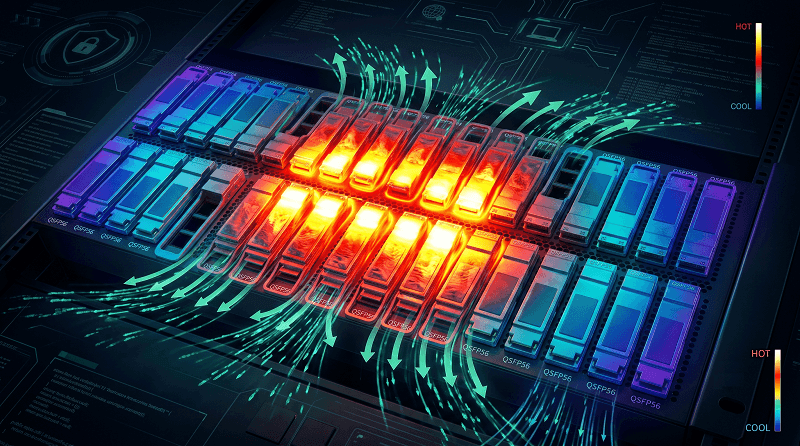
QSFP56 modules run 4.5W to 7.5W. In a dense 32-port switch, adjacent modules heat each other. Watch for:
- Temperature cycling near the rated limit
- Flaps that correlate with load
- Recovery after moving the module to a cooler slot
Fix airflow before replacing optics. A new module in the same hot spot will fail the same way.
Connector and Cable Issues
| Issue | Symptom | Fix |
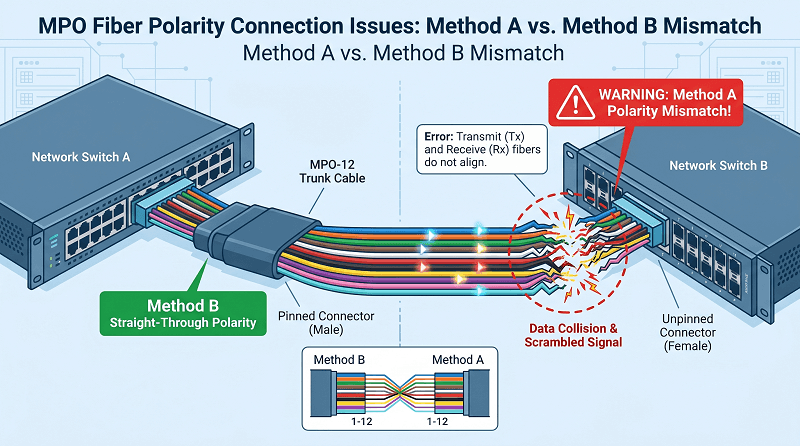
| MPO polarity mismatch | No link or lane mapping errors | Verify polarity type (A/B/C) |
| Bend radius violation | Rising CRC errors | Re-route fiber to spec |
| Patch panel loss | RX power near threshold | OTDR or power meter test |
| Dirty connectors | Intermittent CRC flaps | Clean and inspect |
Breakout Cable Edge Cases
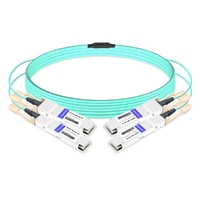
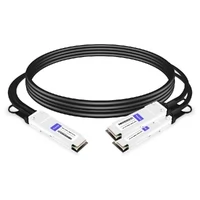
200G to 2×100G breakout cables require correct lane mapping. If the switch ASIC doesn’t support the breakout mode, or if the cable pinout is wrong, you’ll see partial link, wrong speed, or no link at all.
Check the switch datasheet for supported breakout modes before buying breakout DACs or AOCs.
A Field-Proven QSFP56 Troubleshooting Workflow
Use this decision tree on every QSFP56 failure.
Step 1: Visual inspection. Check LEDs, cable jacket labels, and module labeling. Confirm module type matches fiber and distance.
Step 2: DOM baseline. Read temperature, voltage, TX/RX power. Compare against healthy ports.
Step 3: FEC verification. Confirm both ends use RS-FEC. Check corrected and uncorrected codeword counters.
Step 4: Cable/module swap test. Move the module to a known-good port. Swap the cable. See if the problem follows the hardware.
Step 5: Sustained traffic soak. Run line-rate traffic for 15-30 minutes. PAM4 links can pass light tests and fail under load.
Tools You Need
- Fiber microscope (400x magnification)
- Optical power meter
- MPO/LC one-click cleaners
- Vendor CLI access
- Known-good spare modules and cables
Mini-Story: The Polarity Problem
A hyperscale deployment team rolled out 200G QSFP56 SR4 links between leaf and spine switches. During burn-in, three links flapped every 20 minutes. DOM showed normal power. FEC counters were clean. Cable tests passed.
The team replaced transceivers twice. The flaps continued.
Finally, a field engineer checked the MPO polarity. The cable plant was wired Method B. The breakout panels at one end were Method A. The polarity mismatch caused lane mapping errors that the switch recovered from automatically, but not before dropping traffic.
Re-terminating the panels to Method B eliminated the flaps. The lesson: when hardware looks fine but the link isn’t stable, check the fiber infrastructure rules, not just the components.
FAQ
Why does my QSFP56 show link up but pass no traffic?
The most common cause is FEC mode mismatch. Both ends must use the same RS-FEC configuration. Lock FEC manually rather than relying on auto-negotiation.
How do I know if my QSFP56 FEC is working?
Check FEC counters. Corrected codewords are normal. Uncorrected codewords indicate physical-layer problems. Use show interface fec on Cisco or show interfaces phy detail on Arista.
What DDM values should I monitor?
Prioritize temperature, RX optical power, and voltage. Set alerts before these reach alarm thresholds. RX power drops and temperature rises are early warnings of most QSFP56 failures.
Why is my third-party QSFP56 not recognized?
The switch likely enforces vendor EEPROM coding. Enable unsupported transceiver support (service unsupported-transceiver on Cisco, enable3px on Arista). Some platforms also require specific firmware or a license.
Can a QSFP28 module cause issues in a QSFP56 port?
QSFP56 ports usually accept QSFP28 modules and negotiate to 100G. The issue is speed mismatch if the remote end expects 200G, or FEC mismatch if one side treats the link as QSFP28 NRZ and the other as QSFP56 PAM4.
What causes intermittent QSFP56 link flaps?
Thermal stress, connector contamination, MPO polarity errors, and loss budget violations are the top causes. Intermittent issues rarely fix themselves and usually get worse under load.
Conclusion: Troubleshoot QSFP56 Like a Systems Problem
QSFP56 failures rarely have one cause. A dirty connector plus a hot chassis plus an auto-negotiated FEC mismatch can produce the same symptom: a link that looks fine but doesn’t move traffic reliably.
Start with physical layer checks. Verify FEC manually. Read DOM before and after the failure. Test under sustained load, not just with pings. And keep known-good spares on hand.
The engineers who resolve QSFP56 issues fastest don’t guess. They isolate by layer, measure against thresholds, and swap one variable at a time.
Need help diagnosing a specific QSFP56 failure? Contact our technical team with your switch model, module type, and error counters.
Related Products:
-
 QSFP56-200G-SR4M 200G QSFP56 SR4 PAM4 850nm 100m MTP/MPO APC OM3 FEC Optical Transceiver Module
$139.00
QSFP56-200G-SR4M 200G QSFP56 SR4 PAM4 850nm 100m MTP/MPO APC OM3 FEC Optical Transceiver Module
$139.00
-
QSFP56-200G-FR4S 200G QSFP56 FR4 PAM4 CWDM4 2km LC SMF FEC Optical Transceiver Module
$650.00
-
NVIDIA(Mellanox) MMA1T00-HS Compatible 200G Infiniband HDR QSFP56 SR4 850nm 100m MPO-12 APC OM3/OM4 FEC PAM4 Optical Transceiver Module
$139.00
-
NVIDIA(Mellanox) MMS1W50-HM Compatible 200G InfiniBand HDR QSFP56 FR4 PAM4 CWDM4 2km LC SMF FEC Optical Transceiver Module
$650.00
-
NVIDIA MFS1S90-H003E Compatible 3m (10ft) 2x200G QSFP56 to 2x200G QSFP56 PAM4 Breakout Active Optical Cable
$800.00
-
NVIDIA(Mellanox) MCP7H50-H001R30 Compatible 1m (3ft) Infiniband HDR 200G QSFP56 to 2x100G QSFP56 PAM4 Passive Breakout Direct Attach Copper Cable
$55.00
-
NVIDIA(Mellanox) MFS1S50-H003E Compatible 3m (10ft) 200G HDR QSFP56 to 2x100G QSFP56 PAM4 Breakout Active Optical Cable
$480.00
-
NVIDIA(Mellanox) MFS1S00-H003E Compatible 3m (10ft) 200G HDR QSFP56 to QSFP56 Active Optical Cable
$350.00