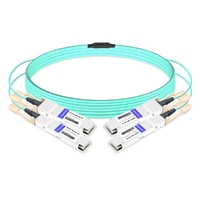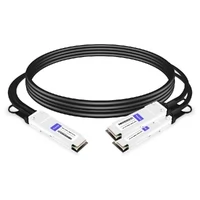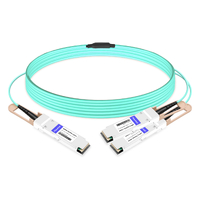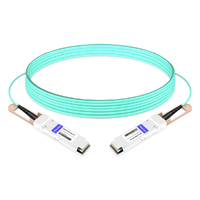

You plugged a QSFP56 module into a QSFP28 port. It fits. It doesn’t work.
We’ve seen this exact scenario waste half a day of troubleshooting time. The module slides in cleanly because QSFP56 and QSFP28 share the same physical shell. But qsfp56 compatibility isn’t about whether something clicks into place. It’s about electrical signaling, ASIC capability, firmware support, and vendor implementation choices working together.
For a deeper look at the technology, see our complete QSFP56 guide.
Here’s the short answer: QSFP56 is backward compatible with QSFP28 only when the host port supports it. A QSFP28 module usually works in a QSFP56-capable port at 100G, but a QSFP56 module will not work in a QSFP28-only port at 200G because the host lacks 50G PAM4 SerDes capability.
This guide gives you the switch compatibility matrix, CLI unlock commands, firmware guidance, and troubleshooting steps you actually need before procurement.
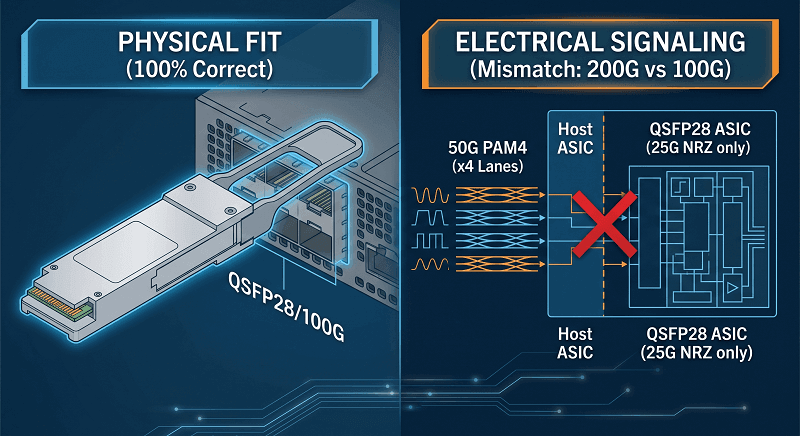
Physical vs Electrical Compatibility
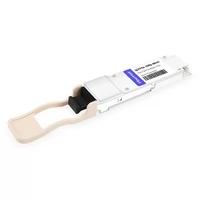
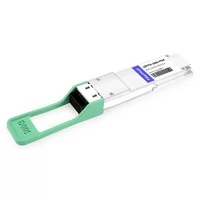
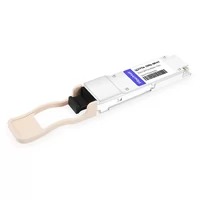
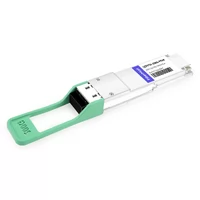
QSFP56 and QSFP28 look identical at first glance. Same 18.35mm × 8.5mm × 72.4mm form factor, same cage, same pull tab design. You can insert either module into either port without forcing anything.
That’s the trap.
The electrical interface is what separates them. QSFP28 runs 4×25G NRZ lanes for 100G total. QSFP56 runs 4×50G PAM4 lanes for 200G total.
NRZ uses two signal levels per symbol. PAM4 uses four. That difference lets each lane carry twice the data, but it demands a completely different SerDes architecture on the switch ASIC.
If the switch ASIC doesn’t support 50G PAM4 signaling, the QSFP56 module cannot negotiate 200G. It doesn’t matter that the module fits. It doesn’t matter that the cable looks fine. Without PAM4-capable SerDes on both ends, 200G is impossible.
The thing is, many engineers assume backward compatibility means “any module works in any port.” That’s not how it works with QSFP56. Physical fit is just the first gate. Electrical compatibility is the one that actually determines whether your link comes up.
Backward & Forward Compatibility Matrix
The most common qsfp56 compatibility question we get is directional: “Will module X work in port Y?” Here’s the matrix we use in the field.
| Insert This Module | Into This Port | Result | Conditions |
| QSFP28 (100G) | QSFP56 port | Usually 100G | ASIC supports NRZ fallback; firmware enables speed selection |
| QSFP56 (200G) | QSFP28 port | Does not work at 200G | Host lacks 50G PAM4 SerDes |
| QSFP56 (200G) | QSFP-DD port | 200G works | Native mechanical + electrical support |
| QSFP28 (100G) | QSFP-DD port | 100G works | Native backward compatibility |
| QSFP+ (40G) | QSFP56 port | Usually 40G | Depends on ASIC/firmware support |
| QSFP56 (200G) | QSFP+ port | Does not work | No PAM4 support; lane rate mismatch |
The rule is pretty simple: QSFP-DD is the universal donor; QSFP28 is not.
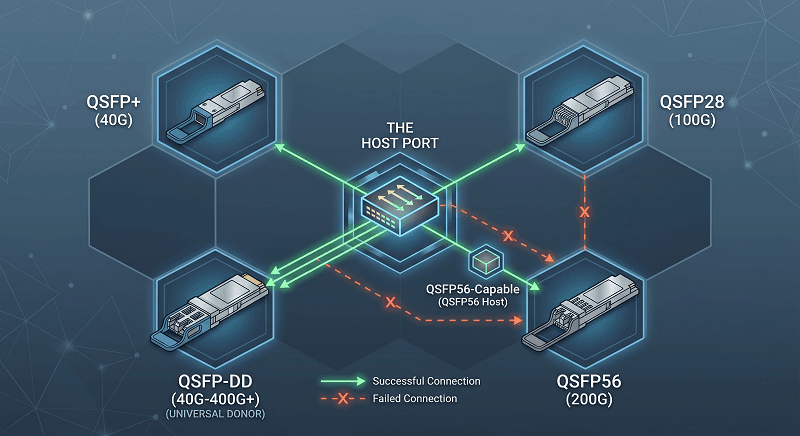
A QSFP-DD port accepts QSFP+, QSFP28, QSFP56, and QSFP112 modules because the mechanical design and electrical pinout support the whole family. A QSFP56 port usually accepts QSFP28 and QSFP+ modules if the switch vendor implemented multi-rate support in firmware. But a QSFP28-only port cannot accept QSFP56 at 200G under any circumstance.
This matters during network upgrades. If you’re moving from 100G to 200G, you can’t just swap in QSFP56 modules on existing QSFP28 switches. You need new switches or line cards with PAM4-capable ASICs. For more on form factor decisions, read our QSFP56 vs QSFP-DD comparison.
QSFP56 Switch Compatibility by Vendor
Not every switch that claims “QSFP56 support” implements it the same way. Some platforms need specific line cards. Others require minimum NOS versions. Here’s what works in 2026 based on vendor datasheets and deployment experience.
| Vendor | Platform | Ports | QSFP56 Support | Notes |
| Cisco | Nexus 9364D-GX2A | 64× QSFP-DD/QSFP56 | Full | Verify line card PAM4 support |
| Cisco | Nexus 3232C | 32× QSFP28/QSFP56 | Partial | Firmware-dependent; not all ports run 200G |
| Arista | 7060X6-64PE | 64× QSFP-DD/QSFP56 | Full | Backward compatible with QSFP+/QSFP28 |
| Arista | 7060X4-32S | 32× QSFP56 | Full | Purpose-built 200G platform |
| Arista | 7170-32C | 32× QSFP56 | Full | 200G optimized, low latency |
| Juniper | QFX5220-128C | 128× QSFP-DD/QSFP56 | Full | High-density spine option |
| Juniper | QFX5200-64Y | 64× QSFP56 | Full | Mid-scale leaf/spine |
| NVIDIA | Spectrum-3 SN4600 | 64× QSFP-DD/QSFP56 | Full | InfiniBand HDR + 200GbE |
| NVIDIA | Spectrum-2 SN3700 | 32× QSFP56 | Full | 200GbE native |
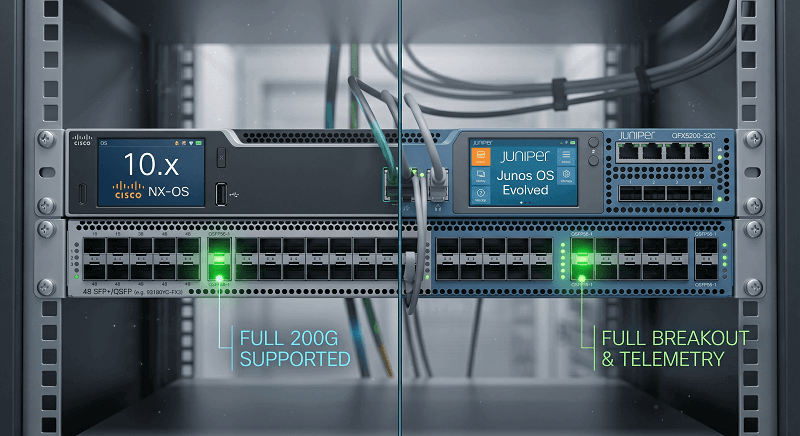
Cisco qsfp56 cisco compatibility generally requires NX-OS 10.x or later for full 200G PAM4 support on QSFP56-capable platforms. Older Nexus switches with QSFP28 cages sometimes advertise “QSFP56 ready” but only through specific ports or line cards. Always check the hardware installation guide for your exact SKU.
Arista qsfp56 arista compatibility is usually straightforward. The 7060X4, 7060X6, and 7170 families ship with native QSFP56 support and multi-rate fallbacks. EOS handles most speed negotiation automatically if the module is MSA-compliant. For non-Arista optics at 400G and above, you may need a license key.
Juniper qsfp56 juniper compatibility on QFX5200 and QFX5220 platforms requires Junos OS Evolved for full QSFP56 feature support. The standard Junos OS branch supports basic 200G operation but lacks some breakout and telemetry features engineers expect. Juniper’s Pathfinder Hardware Compatibility Tool (HCT) is the official source for module verification.
NVIDIA (Mellanox) Spectrum-2 and Spectrum-3 switches treat QSFP56 as native. These platforms are popular in AI clusters where 200G InfiniBand HDR and 200GbE converge on the same ports.
Always verify against the vendor’s latest compatibility matrix before ordering. We’ve seen switches from the same product family ship with different ASIC revisions that change what actually works.
How to Use Third-Party QSFP56 Optics
Third-party qsfp56 third party optics can cut procurement costs by 70-90% compared to OEM modules. But they only work if your switch is willing to talk to them. That usually comes down to three things: MSA compliance, EEPROM programming, and vendor unlock commands.
MSA compliance is the baseline. QSFP56 modules must follow the QSFP56 MSA, IEEE 802.3bs/802.3cd for 200G Ethernet, and CMIS 4.0 for management interfaces. FiberMall modules ship pre-programmed with standard vendor IDs and full DOM/CMIS tables.
Here’s the unlock command for each major vendor:
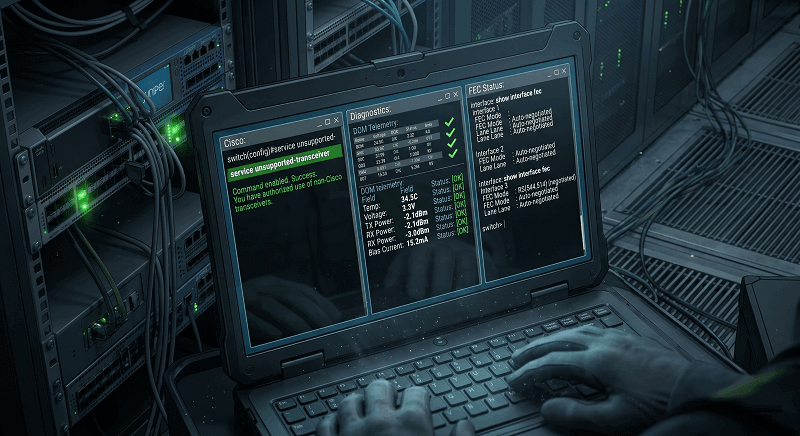
Cisco: service unsupported-transceiver
Arista: service unsupported-transceiver (may need license for 400G+)
Juniper: Generally accepts with proper EEPROM; verify with Pathfinder HCT
On Cisco, the command goes in global configuration mode. Without it, the switch may reject third-party modules outright or report “Unsupported transceiver” in show interface transceiver. On Arista, the same command exists but behavior varies by EOS version and platform. Some newer Arista switches require transceiver speed 200g or explicit speed configuration after unlocking.
What should you test after installing third-party QSFP56 modules?
1. Link up at expected speed
2. DOM readings: temperature, voltage, TX/RX power, bias current
3. FEC negotiation status on both ends
4. Breakout modes if you plan to split 200G into 4×50G
Order samples before bulk purchasing. One bad EEPROM can make 50 modules useless. For guidance on choosing module types, see our QSFP56 module selection guide.
Port Negotiation & Speed Fallback
A common misconception: “QSFP56 ports automatically fall back to 100G when you insert a QSFP28 module.”
They don’t. Not always.
Three factors control whether a QSFP56 port negotiates down to 100G:
1. ASIC SerDes capability — The ASIC must support both 50G PAM4 and 25G NRZ on the same port.
2. Firmware/NOS version — Older firmware sometimes lacks the correct speed profile for mixed modules.
3. Vendor implementation — Some vendors enable multi-rate by default; others require manual configuration.
We had a customer whose QSFP28 modules showed 200G ports coming up at 40G on a QSFP56 switch. The switch defaulted to the lowest common denominator because the firmware didn’t recognize the module’s speed advertisement. A firmware upgrade fixed it.
To verify actual negotiated speed, use these commands:
Cisco: show interface ethernet <port>
Arista: show interfaces ethernet <port> status
Juniper: show interfaces <port> extensive
If the speed is wrong, configure it manually. On Cisco: speed 100000. On Arista: speed forced 100gfull. On Juniper: set interfaces et-<x>/<y>/<z> speed 100g.
The exact syntax varies by platform. Check your NOS documentation.
DOM, FEC, and CMIS Considerations
DOM telemetry on third-party QSFP56 modules works when the EEPROM is correctly programmed. Most MSA-compliant modules expose standard DDM fields: temperature, supply voltage, laser bias, TX power, and RX power per lane. If DOM shows N/A, the module either has incomplete EEPROM data or the switch isn’t reading CMIS 4.0 registers properly.
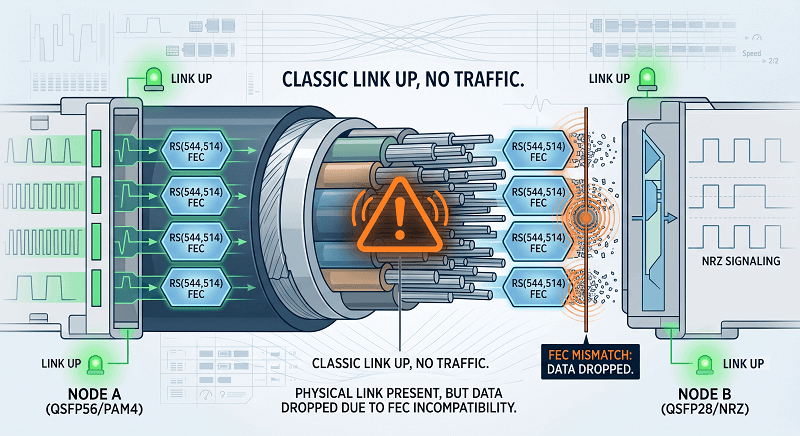
FEC is not optional for QSFP56. PAM4 signaling at 50G per lane has a tighter noise margin than NRZ, so IEEE 802.3bs mandates RS(544,514) FEC for 200G links. Both ends of the link must use the same FEC mode. Mismatch usually produces one of two symptoms: the link falls back to a lower speed, or the link comes up but passes no traffic.
“Link up, no traffic” is the classic FEC mismatch signature. The LEDs look happy. The CLI says up. Pings die silently.
CMIS 4.0 (Common Management Interface Specification) defines how the switch talks to the module for configuration, diagnostics, and firmware updates. Not all switch NOS versions support the full CMIS 4.0 command set. If you’re running monitoring tools that depend on module telemetry, confirm CMIS support with your vendor.
Common verification commands:
Cisco: show interface fec and show interface transceiver detail
Arista: show interfaces ethernet <port> transceiver and show interfaces ethernet <port> fec
Juniper: show interfaces <port> extensive | match FEC and show chassis hardware
Troubleshooting Common Compatibility Issues
Here’s the field troubleshooting matrix we use when qsfp56 compatibility problems show up during deployment.
| Symptom | Likely Cause | Diagnostic Command | Fix |
| Module not recognized | Missing firmware profile or vendor ID | show interface transceiver | Upgrade firmware; enable service unsupported-transceiver |
| Link up at wrong speed | Fallback mode not enabled | show interface status | Check firmware; configure speed manually |
| Link up, no traffic | FEC mismatch | show interface fec | Match FEC mode on both ends |
| DOM shows N/A | Incomplete EEPROM | show interfaces transceiver detail | Verify third-party supplier programming |
| Breakout not working | ASIC lacks split support | show platform hardware | Check switch datasheet for breakout capability |
Module recognition failures usually mean the switch doesn’t have a firmware profile for the module’s vendor ID or part number. Third-party modules often encode a generic MSA ID. Some switch NOS versions accept these; older versions reject them. The fastest fix is a firmware upgrade or enabling service unsupported-transceiver.
Wrong-speed links usually trace back to multi-rate support. The switch sees the module but doesn’t know which speed to pick. We’ve seen this on early QSFP56 switches running pre-release firmware. Manually locking the speed solves it most of the time.
“Link up, no traffic” almost always points to FEC. One side has FEC enabled; the other doesn’t. Or one side uses RS-FEC while the other uses FC-FEC. Standardize on RS(544,514) for 200G QSFP56 and confirm it on both ends.
DOM gaps are annoying but usually not fatal. The link works; you just can’t monitor it. If telemetry matters for your operations, test sample modules before committing to a large order. Not all third-party suppliers program EEPROMs with the same thoroughness.
For deeper diagnostics, see our QSFP56 troubleshooting guide.
Conclusion
QSFP56 compatibility comes down to three layers: physical fit, electrical signaling, and firmware support. The module sliding into the cage proves only the first one. You still need PAM4-capable SerDes, matching FEC, and a NOS version that recognizes the module.
Before your next procurement cycle, run through this framework:
1. Check the switch model for native QSFP56 support.
2. Verify the minimum firmware or NOS version.
3. Test actual modules before bulk ordering.
4. Enable third-party support if you’re not buying OEM.
5. Verify FEC negotiation and DOM telemetry after link-up.
Get any of these wrong and you’ll burn hours on symptoms that look like bad optics but are actually configuration or firmware issues. For network architecture guidance, see our 200G network design guide. If you need module recommendations for your specific switch platform, explore FiberMall QSFP56 modules or contact our team for a compatibility check.
Related Products:
-
 QSFP56-200G-SR4M 200G QSFP56 SR4 PAM4 850nm 100m MTP/MPO APC OM3 FEC Optical Transceiver Module
$139.00
QSFP56-200G-SR4M 200G QSFP56 SR4 PAM4 850nm 100m MTP/MPO APC OM3 FEC Optical Transceiver Module
$139.00
-
QSFP56-200G-FR4S 200G QSFP56 FR4 PAM4 CWDM4 2km LC SMF FEC Optical Transceiver Module
$650.00
-
NVIDIA(Mellanox) MMA1T00-HS Compatible 200G Infiniband HDR QSFP56 SR4 850nm 100m MPO-12 APC OM3/OM4 FEC PAM4 Optical Transceiver Module
$139.00
-
NVIDIA(Mellanox) MMS1W50-HM Compatible 200G InfiniBand HDR QSFP56 FR4 PAM4 CWDM4 2km LC SMF FEC Optical Transceiver Module
$650.00
-
NVIDIA MFS1S90-H003E Compatible 3m (10ft) 2x200G QSFP56 to 2x200G QSFP56 PAM4 Breakout Active Optical Cable
$800.00
-
NVIDIA(Mellanox) MCP7H50-H001R30 Compatible 1m (3ft) Infiniband HDR 200G QSFP56 to 2x100G QSFP56 PAM4 Passive Breakout Direct Attach Copper Cable
$55.00
-
NVIDIA(Mellanox) MFS1S50-H003E Compatible 3m (10ft) 200G HDR QSFP56 to 2x100G QSFP56 PAM4 Breakout Active Optical Cable
$480.00
-
NVIDIA(Mellanox) MFS1S00-H003E Compatible 3m (10ft) 200G HDR QSFP56 to QSFP56 Active Optical Cable
$350.00