
An H200 burn-in test is essential for validating GPU stability, memory integrity, interconnect performance, and cooling behavior before an NVIDIA H200 server enters production.
The NVIDIA H200 Tensor Core GPU features 141 GB of HBM3e memory and up to 4.8 TB/s of memory bandwidth. H200 SXM configurations support up to 700 W of configurable thermal design power, making power delivery and thermal management important parts of system validation.
A server that boots successfully or passes a short benchmark may still encounter errors during sustained AI training or multi-GPU communication.
This guide explains how to perform an H200 burn-in test, establish pass/fail criteria, troubleshoot common failures, and document results for reliable delivery and maintenance.
Why H200 Deployments Need Comprehensive Validation
H200 systems depend on multiple components working together. Failures may originate from:
- GPU compute: Unexpected errors, unstable workloads, or GPUs becoming unavailable.
- HBM3e memory: Memory errors or degraded performance under sustained workloads.
- NVLink and PCIe: Communication failures or unexpected topology changes.
- Networking: InfiniBand, RDMA, or Ethernet bottlenecks affecting distributed training.
- Power and cooling: Thermal throttling, unstable clocks, or power-delivery problems.
- Software compatibility: Driver, CUDA, NCCL, or firmware configuration issues.
A comprehensive H200 burn-in test combines component diagnostics with system-level workload testing. No single utility can validate every subsystem.
Pre-Delivery Verification: Check Before Testing
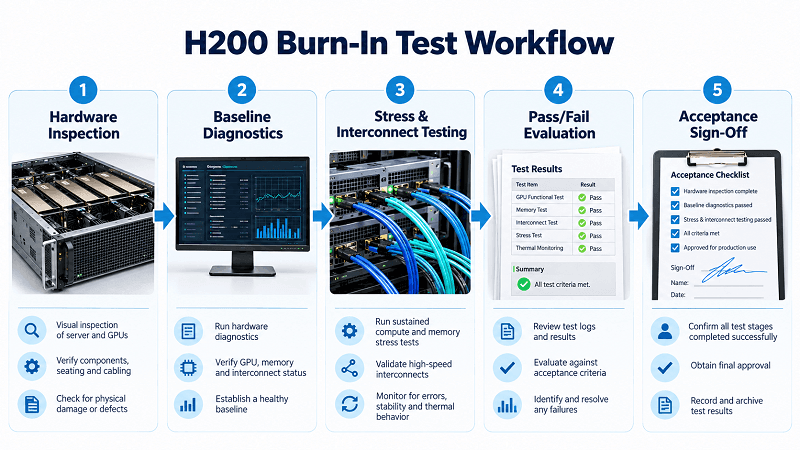
Establish a hardware and software baseline before running stress tests.
Hardware and Software Inventory
Verify the server model, GPU count, device identifiers, NICs, storage, power supplies, and cooling configuration. For an eight-GPU system, confirm that all eight GPUs are detected and match the expected topology.
Record the versions of the BIOS, BMC, GPU and NIC firmware, operating system, kernel, NVIDIA driver, CUDA, and NCCL. Confirm that the installed software combination is supported by the platform vendor.
Power, Cooling, and Cabling
Inspect power connections, fans, airflow, cooling components, and rack power capacity. Check the condition and compatibility of optical transceivers, DACs, AOCs, and fiber connections where applicable.
Capture baseline health information using nvidia-smi -q, system logs, BMC event logs, and available platform diagnostics. Record GPU temperatures, power consumption, clock behavior, and relevant error counters.
This baseline makes later fault diagnosis more reliable.
The Six Dimensions of an H200 Burn-In Test
GPU Compute Stress Testing
Use vendor-supported GPU diagnostics and sustained compute workloads to identify instability that may not appear during idle operation.
Tools such as NVIDIA Data Center GPU Manager (DCGM) and gpu-burn can help validate GPU health and sustained compute behavior.
Monitor GPU availability, utilization, clocks, temperatures, power consumption, and unexpected XID events.
Pass criteria: Required diagnostics complete successfully, compute results are correct, and no unexplained hardware errors occur.
High GPU utilization alone does not prove stability. Tests must complete correctly and consistently.
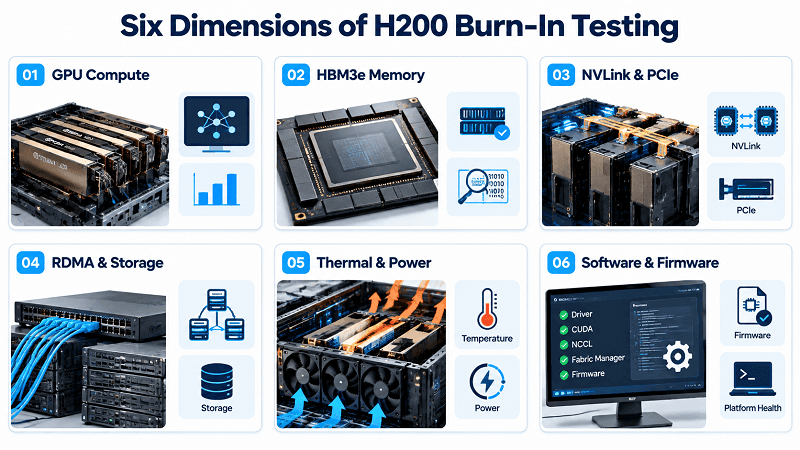
HBM3e Memory and NVLink Validation
Memory and GPU-to-GPU communication are critical to H200 performance.
Use DCGM diagnostics and other approved tools to check memory integrity, ECC events, and relevant memory-health indicators. Verify the expected NVLink and NVSwitch topology on supported platforms.
Run GPU peer-to-peer communication and bandwidth tests to identify degraded links or unexpected communication failures.
Pass criteria: Memory and interconnect diagnostics pass, no new uncorrectable memory errors occur, and the expected topology and performance meet the approved baseline.
Corrected ECC events should be recorded and evaluated according to the platform’s acceptance policy rather than automatically treated as hardware failures.
InfiniBand, RDMA, and Storage Testing
Passing local GPU tests does not guarantee good multi-node performance.
Validate network port states, link rates, RDMA communication, error counters, and the intended fabric configuration. For RoCE networks, check relevant congestion-management settings, including PFC and ECN where applicable.
Use NVIDIA nccl-tests to test collective operations such as AllReduce, AllGather, and ReduceScatter. Begin with single-node tests before extending validation across multiple nodes.
Test local or shared storage separately when it is part of the deployment.
Pass criteria: RDMA and NCCL operations complete without unexplained errors, network health remains within agreed limits, and storage meets the required performance and data-integrity criteria.
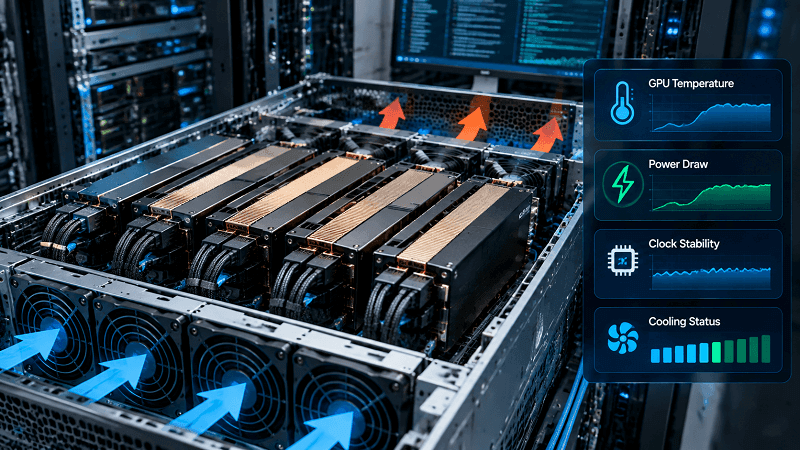
Thermal and Power Validation
Thermal and power testing must reflect the actual H200 platform.
The H200 SXM specification lists configurable thermal design power up to 700 W, while H200 NVL supports configurations up to 600 W. These figures should not be applied interchangeably to different server designs.
During sustained workloads, monitor:
- GPU temperatures and thermal-throttling indicators
- Power consumption and configured power limits
- Clock stability and performance changes
- Fan speeds and cooling-system health
- PSU status and relevant system events
Pass criteria: Operation remains within manufacturer limits, cooling functions correctly, and no unexplained throttling or power-related errors occur.
Reaching a configured power limit is not automatically a failure; unexpected performance loss or operation outside the approved limits requires investigation.
Burn-In Duration: How Long Is Enough?
There is no universal burn-in duration for every H200 system. The appropriate schedule depends on platform design, workload, failure history, and customer requirements.
| Test stage | Suggested duration | Purpose |
| Initial screening | 2–4 hours | Detect obvious instability |
| Pre-delivery acceptance | 12–24 hours | Validate sustained system behavior |
| Post-repair validation | 24–48 hours | Confirm repair stability |
These are engineering recommendations, not universal NVIDIA requirements.
Combine compute, memory, communication, and thermal tests rather than relying on one continuous stress workload. Extend testing when previous failures or service requirements justify a longer observation period.
Software and Platform Stability
Verify that drivers, CUDA, NCCL, firmware, and required platform services operate correctly together.
For applicable systems, confirm that NVIDIA Fabric Manager and other required services are running. Check that the expected GPUs and interconnects are discovered correctly after a controlled reboot.
Pass criteria: The supported software stack starts correctly, all expected devices remain available, and the required diagnostics pass consistently.
H200 Burn-In Test Pass/Fail Criteria
Define acceptance criteria before testing to avoid subjective sign-off decisions.
| Test area | Pass criteria |
| GPU inventory | All expected GPUs are detected |
| Compute and memory | Required diagnostics pass with correct results |
| NVLink and PCIe | Expected topology and communication paths work |
| NCCL and RDMA | Tests meet the approved performance baseline |
| Thermal and power | Values remain within platform limits |
| Storage | Data integrity and required performance are maintained |
| Software and firmware | Supported versions and services operate correctly |
Performance thresholds should be based on a qualified reference system with comparable hardware, topology, software, and workload settings.
For NCCL, record algorithm bandwidth (algbw) and bus bandwidth (busbw) where available. These metrics represent different quantities, so they should not be compared as if they were interchangeable.
Consult the NCCL test performance guide when establishing measurement procedures.
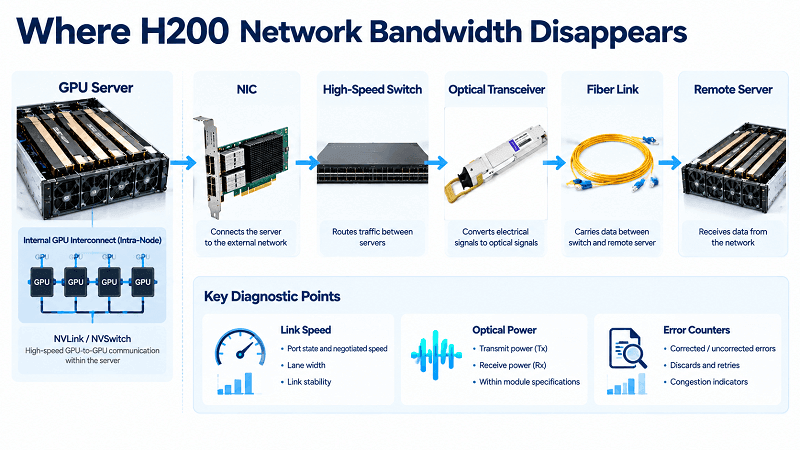
Where H200 Bandwidth Disappears: Physical-Layer Checks
GPU performance problems can originate outside the GPU itself. Data may pass through NVLink, PCIe, NICs, switches, optical transceivers, and fiber or copper cabling.
For high-speed network connections, verify:
- Transceiver and cable compatibility
- Link speed and port configuration
- Fiber type, polarity, and lane mapping
- Connector cleanliness and physical condition
- Optical transmit and receive power, where supported
- FEC configuration and link-error counters
For DAC and AOC connections, confirm supported reach, device compatibility, and port settings.
Troubleshoot the system layer by layer:
- Validate GPU compute and memory.
- Test intra-node GPU communication.
- Check NIC health and external links.
- Run RDMA and multi-node NCCL tests.
- Compare results with the approved baseline.
If local GPU tests pass but multi-node performance is poor, investigate the network fabric and physical connections before replacing GPU hardware.
Acceptance Documentation: Evidence for Sign-Off
Every H200 delivery should include a reproducible acceptance record containing:
- Hardware inventory: Server model, serial numbers, GPU count, and relevant components.
- Software baseline: Firmware, driver, CUDA, NCCL, and operating system versions.
- Test results: Commands, versions, durations, performance measurements, and pass/fail status.
- Health records: Relevant temperatures, power readings, ECC events, XID errors, and interconnect results.
- Exceptions and repairs: Observed faults, corrective actions, and retest results.
- Approval: Acceptance criteria, outstanding exceptions, engineer approval, and delivery status.
Retain raw logs alongside the summary report. They provide essential evidence if a problem appears after deployment.
H200 Repair and Maintenance: Identify the Fault Before Replacing Parts
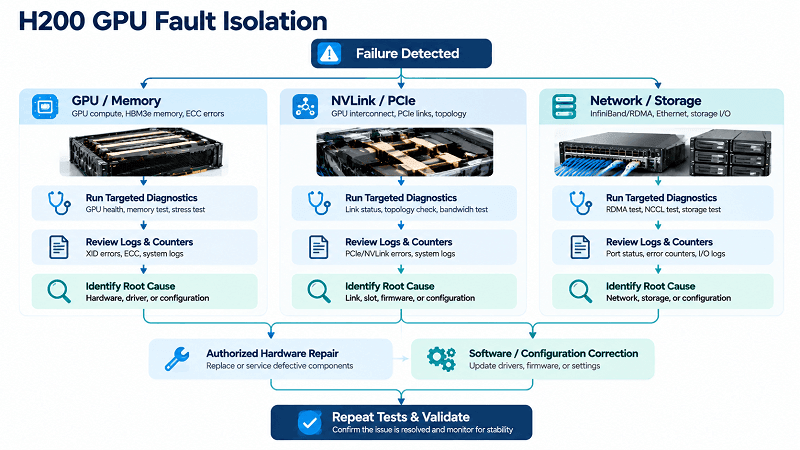
A failed workload does not automatically indicate a defective GPU. A GPU that disappears from the system may have a PCIe, hardware, firmware, or driver-related problem. NCCL failures can also originate in the network or GPU interconnect.
Use the following troubleshooting sequence:
- Preserve system logs, BMC events, and diagnostic output.
- Determine whether the issue affects one GPU, one node, or multiple nodes.
- Identify the first error in the event sequence.
- Check software versions and recent configuration changes.
- Verify GPU availability and expected topology.
- Inspect PCIe, NVLink, or network health as applicable.
- Run targeted diagnostics to reproduce the problem.
- Isolate storage and network paths when relevant.
- Perform only authorized repairs.
- Repeat the failed test and complete regression validation.
NVIDIA’s XID error catalog helps engineers interpret GPU driver events. For example, XID 79 indicates that the GPU has become inaccessible over PCIe, but it does not independently prove that the GPU module must be replaced.
Teardown and Reassembly Precautions
Follow the service manual for the exact server platform. Before servicing, apply the required shutdown, power-isolation, and ESD procedures. Document component locations, cable routing, and replacement part identifiers.
Do not assume that every H200 GPU module is customer-replaceable. For NVIDIA DGX H100/H200 systems, consult the official service manual and contact NVIDIA Enterprise Support for applicable GPU replacement or RMA procedures.
Post-Repair Validation: Confirm the Fix
A successful reboot or short benchmark is not sufficient evidence that an intermittent fault has been resolved.
For critical systems, consider a 24–48-hour post-repair validation window, subject to the manufacturer’s procedures and the approved service policy.
The validation process should include:
- Checking device discovery and system health
- Repeating the diagnostic that originally failed
- Running relevant compute, memory, and interconnect tests
- Monitoring thermal and power behavior
- Performing controlled reboot checks where permitted
- Comparing results with the pre-repair baseline
Document the original symptom, root-cause findings, repair, and final test results. If the failure returns, continue fault isolation rather than declaring the repair successful.
Monitoring and Alerts: Prevent Recurring Failures
After deployment, monitor GPU availability, temperature, power, ECC events, XID errors, NVLink and PCIe health, network counters, and storage performance.
A simple alert hierarchy can help prioritize incidents:
| Priority | Example condition | Response |
| P0 — Critical | GPU unavailable or production workload interrupted | Immediate investigation |
| P1 — High | Persistent errors or performance degradation | Prompt fault isolation |
| P2 — Warning | Emerging telemetry trends or noncritical performance drift | Monitor and investigate if persistent |
Alert thresholds should reflect actual operational impact. Correlate events with workload changes, maintenance activity, and historical telemetry to reduce false positives.
Spare Parts and Warranty Planning
Prepare a spare-parts and escalation plan before a failure occurs.
Depending on the platform, useful inventory may include approved fans, power supplies, NICs, optical transceivers, DACs, AOCs, and fiber assemblies.
Confirm warranty coverage, replacement eligibility, service-level agreements, and RMA procedures. Record component serial numbers, diagnostic logs, and repair history.
Do not assume that stocking a GPU module authorizes an engineer to replace it. Follow the applicable manufacturer’s service policy.
FAQ: H200 Burn-In Test
How long should an H200 burn-in test run?
A practical starting point is 2–4 hours for initial screening, 12–24 hours for pre-delivery acceptance, and 24–48 hours for selected post-repair cases. Actual duration depends on the platform, workload, and acceptance requirements.
Is gpu-burn alone enough to validate an H200 node?
No. gpu-burn provides sustained compute stress but does not independently validate all memory, NVLink, PCIe, networking, storage, firmware, and cooling conditions. Combine it with appropriate diagnostics and system-level tests.
What NCCL bandwidth should an eight-GPU H200 node reach?
There is no universal number for every eight-GPU H200 system. Results depend on topology, collective operation, message size, software configuration, and measurement method. Compare results with a qualified reference system using identical test conditions.
What causes a GPU to drop off the bus during training?
Possible causes include PCIe connectivity problems, hardware faults, or driver-related issues. Review XID events, kernel logs, PCIe status, and GPU health before deciding on corrective action.
Can I replace an H200 module myself without voiding the warranty?
Not necessarily. Replacement eligibility depends on the server platform, warranty terms, and authorized service procedures. Confirm with the system manufacturer before attempting GPU-level service.
Final H200 Burn-In Test Checklist
Before production sign-off, confirm that:
- All expected GPUs and devices are detected.
- Compute, memory, and interconnect diagnostics pass.
- NCCL, RDMA, and storage meet the agreed criteria.
- Thermal and power behavior remain within platform limits.
- No unresolved critical hardware errors remain.
- Repairs have passed the required regression tests.
- Test logs and acceptance records are complete.
A reliable H200 burn-in test is not simply a long stress run. It is a documented validation process that combines repeatable diagnostics, measurable acceptance criteria, physical-layer checks, and systematic fault isolation.
By following this checklist, data center operators and system integrators can reduce avoidable rework and improve confidence in H200 server delivery.
Related Products:
-
 NVIDIA MMA4Z00-NS Compatible 800GBASE 2 x SR4/SR8 OSFP PAM4 850nm 100m DOM Dual MPO-12 MMF Optical Transceiver Module
$550.00
NVIDIA MMA4Z00-NS Compatible 800GBASE 2 x SR4/SR8 OSFP PAM4 850nm 100m DOM Dual MPO-12 MMF Optical Transceiver Module
$550.00
-
NVIDIA MMS4X00-NS400 Compatible 400G OSFP DR4 Flat Top PAM4 1310nm MTP/MPO-12 500m SMF FEC Optical Transceiver Module
$450.00
-
NVIDIA MMA4Z00-NS400 Compatible 400G OSFP SR4 Flat Top PAM4 850nm 30m on OM3/50m on OM4 MTP/MPO-12 Multimode FEC Optical Transceiver Module
$400.00
-
NVIDIA MCA7J60-N004 Compatible 4m (13ft) 800G Twin-port OSFP to 2x400G OSFP InfiniBand NDR Breakout Active Copper Cable
$800.00
-
NVIDIA MCA4J80-N003-FLT Compatible 3m (10ft) 800G Twin-port 2x400G OSFP to 2x400G OSFP InfiniBand NDR Active Copper Cable, Flat top on one end and Flat top on the other
$600.00
-
NVIDIA MCP4Y10-N002-FLT Compatible 2m (7ft) 800G Twin-port 2x400G OSFP to 2x400G OSFP InfiniBand NDR Passive DAC, Flat top on one end and Flat top on the other
$300.00
-
NVIDIA MCP7Y10-N003 Compatible 3m (10ft) 800G InfiniBand NDR Twin-port OSFP to 2x400G QSFP112 Breakout DAC
$245.00
-
NVIDIA MMS4X00-NS Compatible 800GBASE 2 x DR4/DR8 OSFP IHS/Closed Finned Top PAM4 1310nm 100m DOM Dual MTP/MPO-12 SMF Optical Transceiver Module
$550.00